“APK not working” can describe several different problems. First identify where the process stops. A browser download, Android installation, app launch and service login are separate stages; each needs different checks.
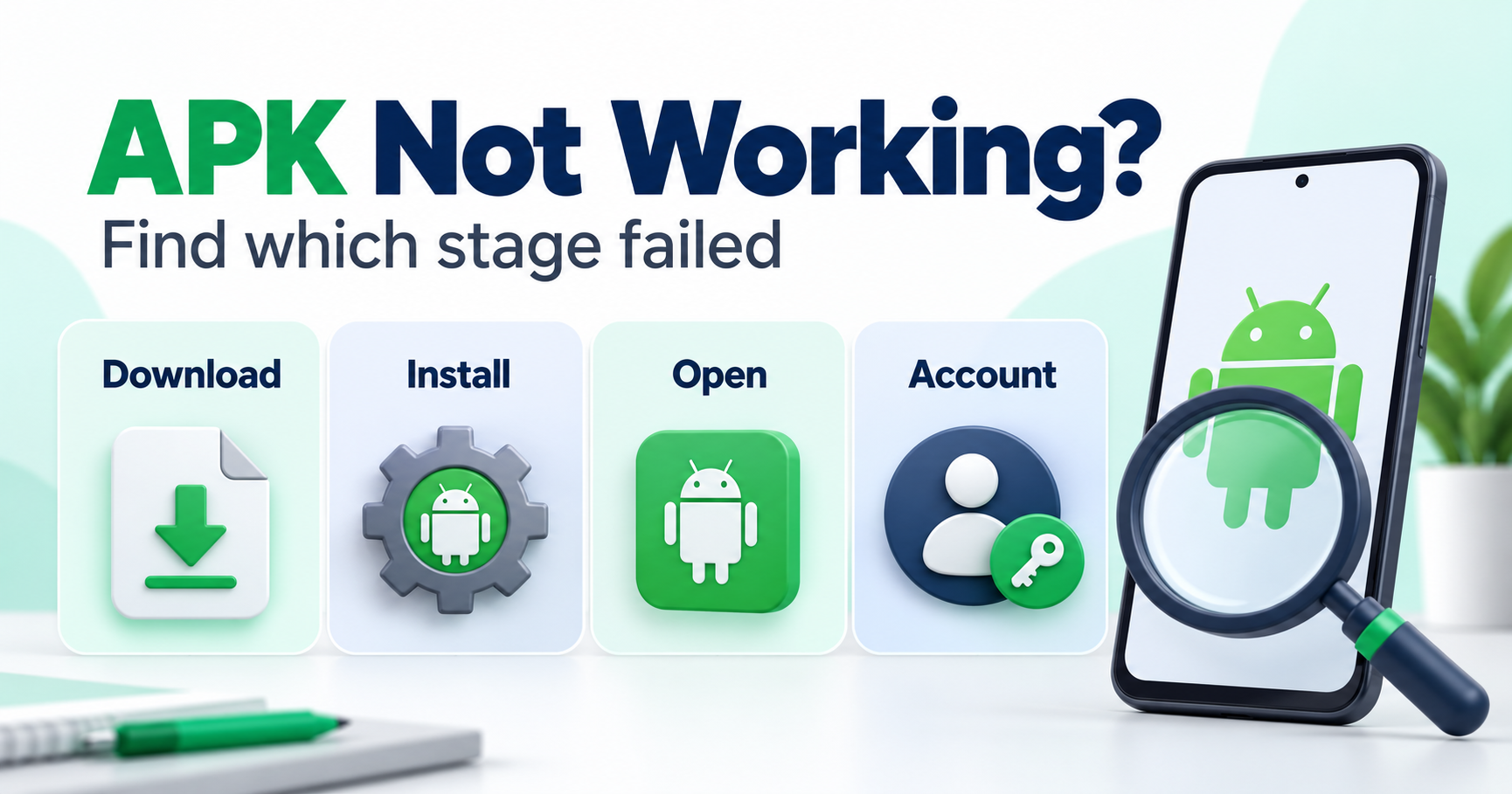
Match the stage to the next action
| Stage or symptom | Relevant next check |
|---|---|
| File never downloads or is incomplete | Browser message, link availability, connection and storage |
| Android installer rejects the package | File format, device compatibility, signing and installation policy |
| App installs but crashes or will not open | App version, supported device and reproducible runtime error |
| App opens but login or purchase fails | Correct account, actual service notice and publisher support |
| A feature or online source is unavailable | Provider support, account eligibility and current feature availability |
Use our download-failure guide for the first stage, installation guide for a package rejection, or app crash guide after a successful install.
Identify the actual package and source
Record the app name, release version, developer and distribution link. A filename or familiar logo is not enough to establish what the app is. Check the documented device requirements and function before trying to repair an unnamed package.
An APK can be one component of a split installation. Renaming an archive or moving an unrelated OBB file does not establish a complete compatible app. Read our APK and app-bundle explanation for format differences.
Protect data before changing the installation
Do not uninstall, clear app storage or factory reset the phone as a universal first fix. Preserve important data and confirm a recovery path. A store, account or service issue may remain even after replacement, so the reset can lose data without addressing the cause.
Keep Play Protect enabled. A warning requires investigation of the actual file and source, not an assumption that disabling protection will make the app work safely.
Record a useful support report
Collect the exact message, phone model, Android version, app version and actions that lead to the failure. Note whether the issue affects one app or all apps, and whether it began after an update. Share only the details needed with the genuine developer or device support.
Frequently asked questions
Will another APK fix every error? No. A different package does not guarantee account access, server availability or a compatible update.
Does “installed successfully” mean the app is safe? No. Installation, function and security are separate checks.
What if I see “not purchased”? Check the real app, store account and purchase notice; use our purchase-error guide.
This is a diagnostic guide based on platform documentation, not a claim that a particular APK has been tested.