Sources reviewed 18 October 2026. Documentation-based guide; no physical-device test is claimed.
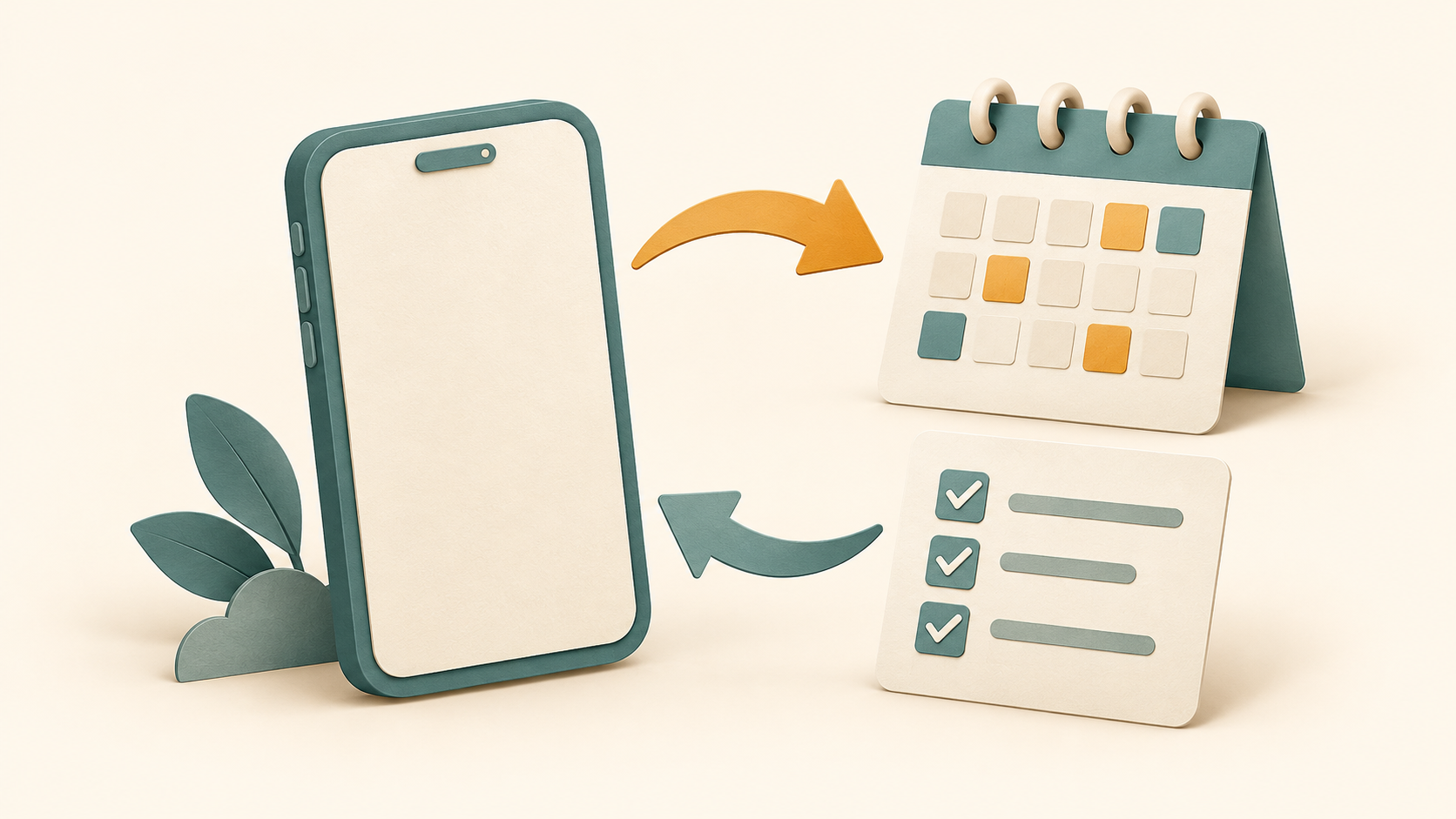
Choose the TickTick calendar connection according to the direction you need: calendar events inside TickTick, or TickTick tasks represented in Google Calendar. Local calendars, account subscriptions and task integration are different routes. Connecting all of them without a plan makes troubleshooting harder.
Start with the desired result
| Goal | Documentation to check |
|---|---|
| Show calendars already present on the device | Local Calendar |
| Work with Google Calendar events inside TickTick | Subscribe from Google Calendar |
| Represent selected TickTick tasks in Google Calendar | Integration with Google Calendar |
TickTick’s calendar subscription overview separates local calendars and several third-party services. Use the guide for the route you actually want; an older tutorial may refer to a different connection method.
Displaying the phone’s local calendars
The Local Calendar guide describes Settings → Import & Integration → Local Calendars on mobile. Select whether a calendar should show normally, only in calendar view, or be hidden. This controls visibility of that calendar in TickTick; it is not a promise to convert all events into independent TickTick tasks.
Google Calendar connections
In its Google Calendar guide, TickTick describes two options under the Google calendar connection. “Subscribe from Google Calendar” displays the account’s calendar events in TickTick and supports synchronized event edits as documented. “Integration with Google Calendar” lets you select a TickTick list and Google calendar for synchronization involving tasks and events.
The guide currently states Android/iOS v7200 or later for the integration. Check your actual release and available plan features before proceeding; this article does not claim that every calendar option is free. Read the authorization screen to understand which account and access you are connecting.
Use a small, reversible check
- Write down the Google account, calendar and TickTick list you intend to connect.
- Choose one connection route initially.
- Use a clearly labelled non-sensitive test item.
- Check which app created the item and where the copy appears.
- Check an edit before relying on the connection for important appointments.
These are suggested verification steps, not results of a test performed for this article. Confirm deletion behavior before removing real events: the documented Google connections can synchronize edits, including deletions.
If an event appears twice
Inspect the calendar names attached to both entries. Compare local-calendar visibility with any Google account connection and task integration. Avoid deleting a real appointment merely to remove an extra display. First identify whether there are two source items or two ways of showing the same source.
If an item is missing
Record whether it is an event or task, its source calendar or list, its date/time and the connected account. Check the selected lists and calendars rather than reconnecting every account at once. If support is needed, share those details with sensitive event content removed.
For Android access settings, use Google’s permission guide. See our Android guide directory for related setup help.