Sources reviewed 18 October 2026. Documentation-based guide; no physical-device test is claimed.
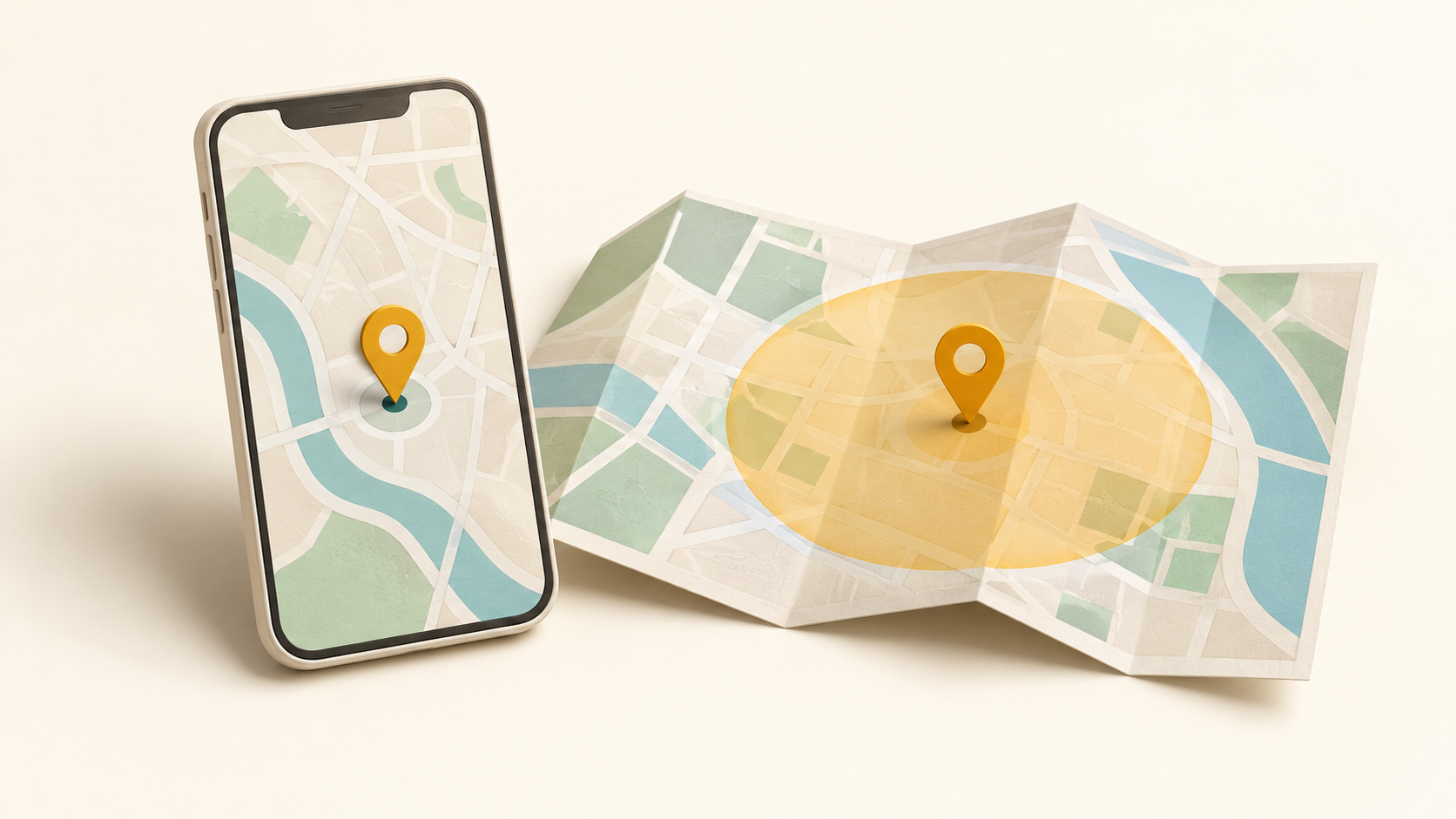
Google Maps’ location permission, precise-location choice and Android’s Location Accuracy setting are separate controls. If the blue dot is missing or seems wrong, identify which control is relevant instead of granting every permission or assuming the app needs reinstalling.
Review Maps’ location access
Google’s app location permission guide describes touching and holding an app icon, opening App info, then Permissions → Location. Depending on the app and device, choices can include access while using the app, asking each time, background access or denial. Do not expect every option on every Android version.
The same guide distinguishes approximate from precise location. If allowed access offers a “Use precise location” control, review it in relation to the task you want Maps to perform. You do not have to give unrelated apps the same choice.
Precision is not Location Accuracy
Google’s device location settings guide explains that Android 12 and later can manage each app’s precise-location permission separately. Location Accuracy is a device service using available signals, such as wireless networks and sensors, to improve position estimates. Allowing a particular app precise access is a different decision from enabling additional location signals.
| Control | Question it answers |
|---|---|
| App location access | May this app use location, and when? |
| Precise-location permission | May the app receive more precise rather than only approximate location? |
| Location Accuracy | May the device use the additional supported signals described by Google? |
A focused troubleshooting check
- Record whether Maps has no position, an approximate position or an incorrect position.
- Review Maps’ permission without changing other apps.
- Check whether device location is enabled.
- Review precision and Location Accuracy separately.
- Return to the same task and note what changed.
Google notes that hardware and available signals vary. A Wi-Fi-only tablet may not have the same sensors as a phone, and changing a permission cannot add missing hardware. Indoors or near large buildings, signal conditions may also matter.
Does location permission automatically share my live position with people?
Do not treat app access, Google Maps Location Sharing and account history settings as interchangeable. Google’s device-settings guide lists Maps Location Sharing and Timeline separately. Review the setting for the actual action you intend, including who can see a shared position, rather than drawing conclusions from the app permission alone.
Should I allow access all the time?
Choose according to the feature you intend to use and the options your device provides. A general guide should not prescribe background access for everyone. If the task works with a narrower choice, there is no reason to expand access merely to follow a generic checklist.
What if the menu is different?
Search your device settings for Maps or App permissions and consult the manufacturer’s instructions. Do not install a third-party settings unlocker to imitate a screenshot from another phone. This guide is based on current documentation, not a physical navigation test.
For broader installation and source checks, browse the Android app guides and our APK safety checklist.