When an Adobe Express design will not export on Android, preserve the design first, identify whether you are using the mobile app or a browser, and record the exact failure. A project that does not finish rendering is different from a completed download you cannot find. Adobe’s detailed export troubleshooting page currently covers web and desktop; its instructions should not be presented as verified Android-app menus.
Sources reviewed 20 October 2026. Documentation-based guide; no device export or performance test is claimed.
Protect the work before troubleshooting
Keep the original design intact. If it is available in your account’s files, confirm that you can reopen it before signing out, clearing app data or reinstalling. Do not assume an unfinished upload has been saved just because you can see it in the editor. If you cannot confirm that the latest work is saved, pause data-removing steps and contact support.
Use a duplicate for changes intended only to diagnose a problem, where the interface offers that option. Record what you changed so you can distinguish an export that succeeds because the design changed from an export that succeeds because the app recovered.
Choose the mobile task before choosing an output
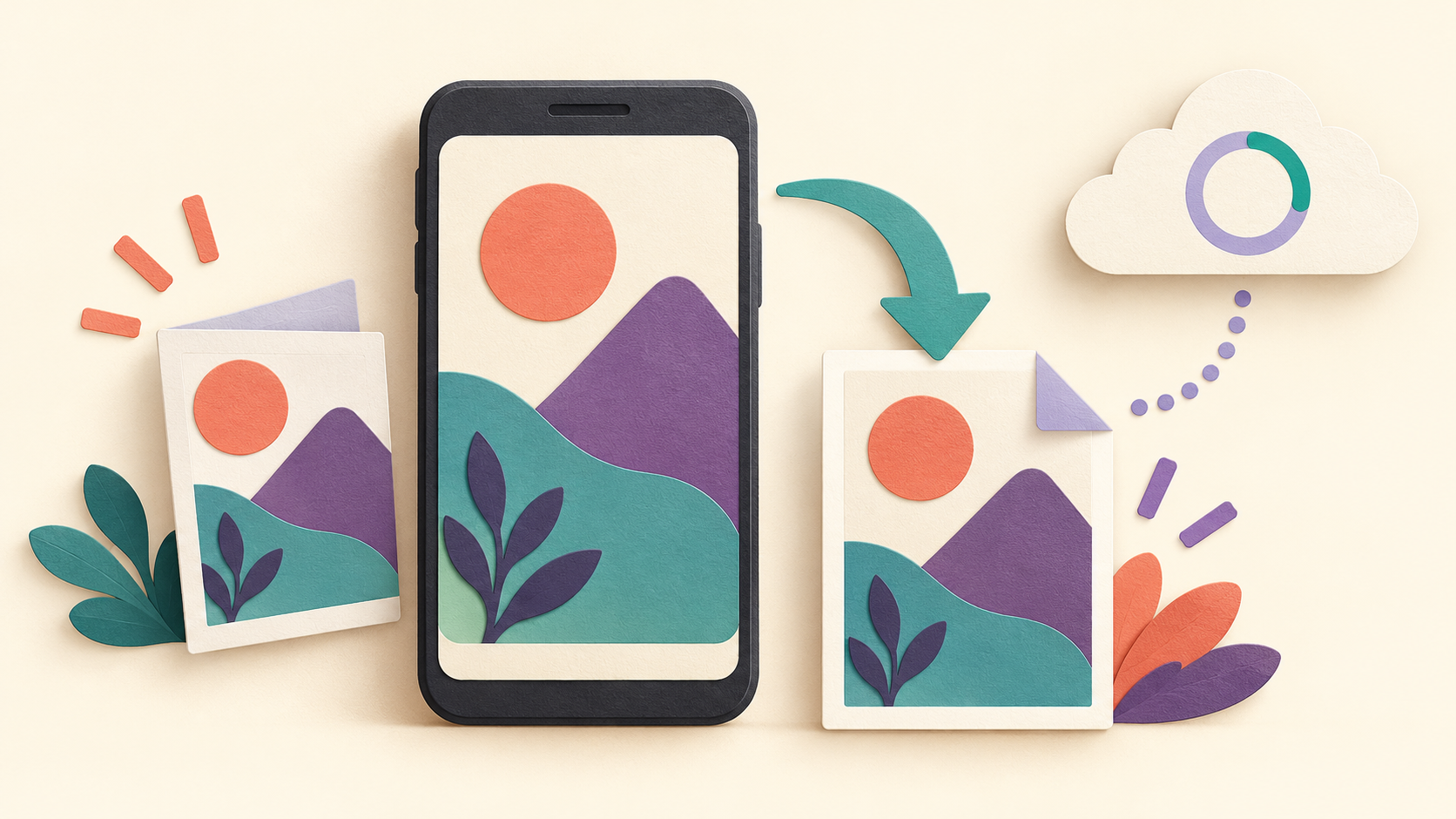
Editing a reusable design and converting one photo are different jobs. Keep the editable project for future changes, then download a separate file for the destination that needs it. Reopening a downloaded image does not restore the original layers or text objects.
- Decide where the result will be used: a website, a document, a message or a printer. Ask that destination which file types and dimensions it accepts.
- Keep a project copy and the source assets before changing layout or resizing. Do not overwrite the only usable copy just to test an export.
- Use the output choices shown for the current mobile project. Record the selected format; a project type or account feature can affect the available choices.
- Open the downloaded file separately and inspect its edges, text and overall size before sharing. A successful download is not a check of spelling or print suitability.
Convert a single photo with a quick action
Adobe’s mobile image-conversion instructions describe Home → Photo, then a Photo quick action for JPG, PNG or SVG conversion. Select or upload the image, confirm the selection and use Download. This is a quick-action workflow; it is not a promise that every multilayer design exposes these same output types.
Changing a file type cannot recover detail absent from the original. Likewise, choosing SVG should not be described as a guarantee of a clean, manually editable vector reconstruction. Check the actual result in the tool that will receive it.
Why keep both the project and the download?
The project supports later editing; the downloaded result is the copy you distribute. If the result looks wrong, return to the project and change one relevant choice at a time. If no download is produced at all, use the failure-stage checks below instead of repeatedly modifying the design.
Mobile workflow section reviewed 23 October 2026. Documentation-based instructions; no export test is claimed.
Identify the failure stage
| What happens | Useful information to collect |
|---|---|
| The app cannot open the design | Account, device eligibility and file availability; this is not yet an export failure. |
| Export never completes | Selected output, exact message, approximate start time and whether an upload is pending. |
| One design fails while another succeeds | The content and assets that distinguish the failing design. |
| Export completes but the file is missing | The save or share destination actually selected in that export flow. |
| A downloaded file will not open | The downloaded file’s type and the viewer used to open it. |
Confirm Android support and the interface you are using
At review, Adobe’s mobile requirements list Android 10 or later and at least 3 GB of RAM. Adobe also directs users to device eligibility in the Play Store. Those minimums are not a guarantee that every complex project will export successfully on every eligible phone.
The mobile app and mobile website are separate environments. Note which one is failing and its version. Adobe’s mobile template instructions use the download icon after customizing a design. Follow the choices actually available for your project rather than a desktop tutorial’s screenshots.
Use a small comparison to narrow the problem
- Keep the failing design and its original assets.
- Try a separate simple design through the same export route. This is a check for you to perform, not a result we claim.
- Record whether both fail, or whether only the original fails.
- If the original is saved in your account, compare access through a supported desktop browser when available.
- Give support the results without claiming that one successful export proves the entire app is fixed.
A successful simple design is useful evidence, but it does not identify a particular damaged asset. A successful desktop export also does not prove that an Android setting is wrong. Keep the comparison specific to the project, account and environment tested.
If you continue in a desktop browser
Adobe’s export troubleshooting guide, updated 8 October 2026, explicitly covers web and desktop. It recommends checking service incidents and pending asset uploads, allowing complex exports time to finish, and narrowing the project by exporting fewer pages or using lighter assets. It also discusses format-size limits and custom fonts when PDF export alone fails.
Use those instructions in the environment they describe. Do not copy their browser-cache or extension steps into the Android-app settings. If you test a simpler copy, preserve the original and write down the affected pages, output format and changed assets.
Check mobile issues without assuming a known fix
The mobile known-issues page documents device access and missing-file problems, among other items. At review it advises checking migrated files through desktop web when they cannot be located in the new app. Read the issue’s description and scope before treating it as an explanation for your export error. This guide does not claim that Adobe has confirmed every export failure as a known Android bug.
What should I include in a support request?
Include the phone model, Android and Express versions, app-versus-browser context, output format, exact message, time of failure and whether a simple design exported. Explain whether the original reopens and whether any asset was still uploading. Supply private project access only through Adobe’s authorized support process; do not post edit links or confidential design content publicly.
Should I install a modified APK to enable export?
An unverified modified package does not establish compatibility, restore a saved design or resolve a service-side failure. Use the publisher’s supported app route and investigate the observed error. Our APK source checklist covers source checks. If the problem is an exported PDF opening in a viewer, see the Acrobat Android file-opening guide, or visit the Android guide directory.