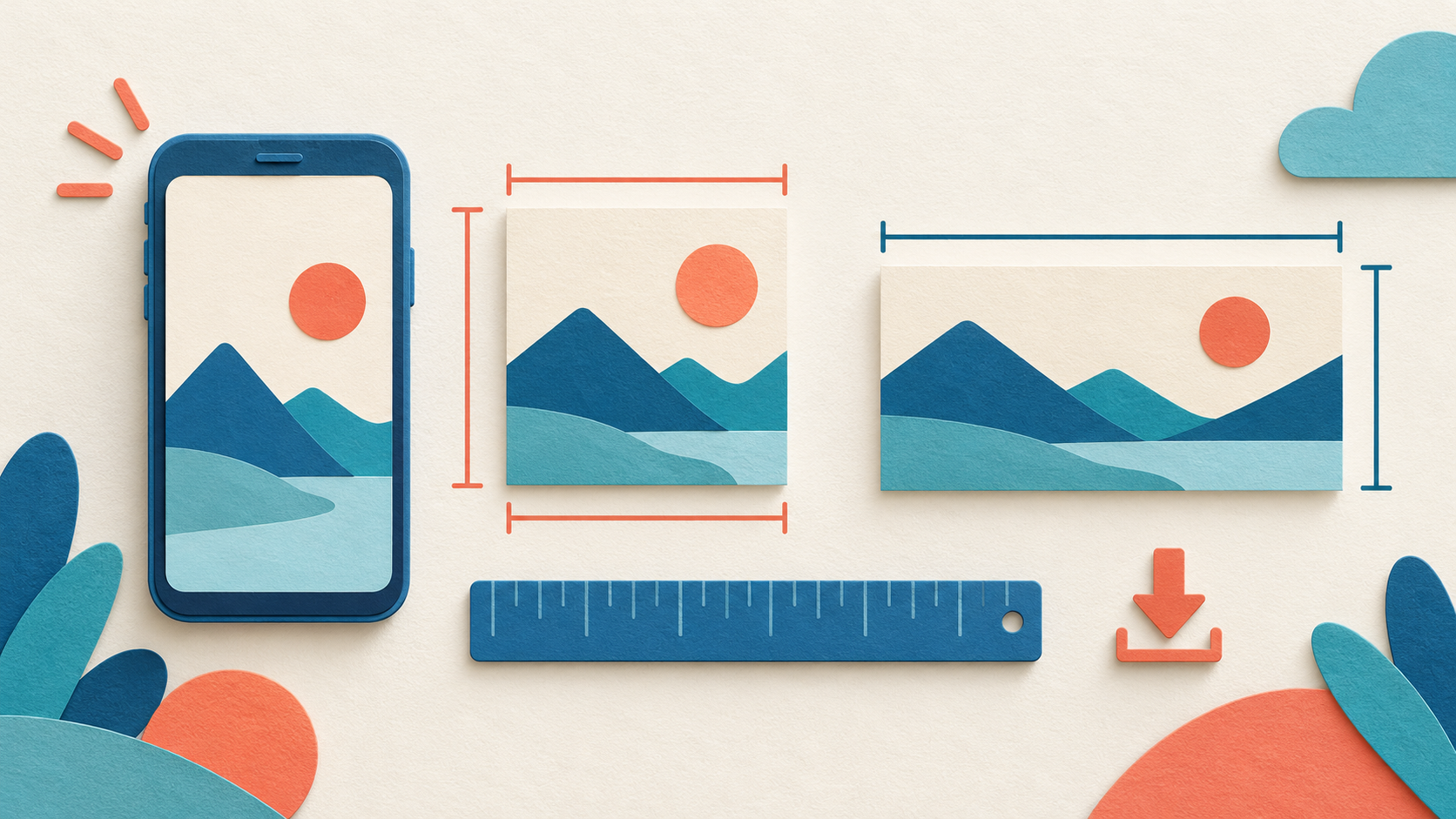
If an image downloaded from Canva has unexpected dimensions, compare three things: the design page’s width and height, the download size setting, and the pixel dimensions of the saved file. A small preview, a large file size in megabytes and the wrong aspect ratio are different problems. Changing quality alone does not necessarily change the shape of the image.
Documentation reviewed 20 October 2026. This guide is based on Canva’s published help, not a claimed hands-on test. Controls and availability can depend on the design type, app release and account plan.
From a mobile design to a checked downloaded asset
Keep the editable design and the downloaded delivery file as separate items. Before exporting, identify the destination and its required file type. A design that still opens in Canva does not prove that the copy saved on your phone is the correct page, format or version.
Canva’s download instructions for desktop and mobile describe Share → Download, choosing a file type, reviewing available size/quality settings, selecting pages and downloading. Read the options in your own account: a premium-content or plan prompt is different from a broken download.
Choose by the receiving task
The official file-type guide distinguishes JPG for photographs, PNG for graphics with transparency support, and PDF choices for document or print output. Available controls and eligibility vary. Ask a printer or receiving service for its specification rather than assuming one format is best for every use.
- Confirm the intended design and keep a copy before changing its layout.
- Check whether all required media has uploaded. Read a download warning instead of dismissing it without checking the affected item.
- Select the intended page or pages. Name the export so it cannot be confused with an older version.
- Open the saved file outside Canva. Inspect text, page order, edges and dimensions using the checks below.
- If the file is for another person, check the delivered attachment or access link as well as the local copy. Exporting does not establish the recipient’s permission to a separate cloud item.
Does cropping remove private information from every export?
Do not assume so. Canva specifically warns that PDF exports can retain the original uncropped image, which another tool may be able to recover. Remove content that must not be disclosed from the source asset before including it in the design, then inspect the final output. A visible crop is a layout choice, not a reliable redaction method.
What if the file looks right but a later edit is needed?
Return to the retained editable design and create a newly named export. Keep track of which version was shared. Editing a flattened downloaded image does not restore the original design structure.
Mobile download section reviewed 23 October 2026. Documentation-based workflow; no Android export test is claimed.
Record the target before changing the design
Write down the destination’s required width and height in pixels. Also note whether it expects a square, portrait or landscape image. For example, a 1200 × 800 image has a 3:2 aspect ratio; a 1200 × 1200 image is square. These numbers are an illustration, not a recommended size for every platform.
Keep an editable copy before experimenting. If a design is for print, confirm physical size and print requirements separately. Pixel dimensions, megabytes and print resolution do not describe the same property.
Use this comparison to locate the mismatch
| Observation | Likely place to investigate | Useful next comparison |
|---|---|---|
| Correct shape, unexpected pixel count | Download scale or size | Design dimensions versus exported dimensions |
| Square output when a portrait was expected | Page size or wrong selected page | Width-to-height ratio before exporting |
| Correct saved file, different appearance after posting | Destination cropping or compression | Original download versus posted copy |
| Correct dimensions but soft details | Source image resolution or export choices | Original assets at the intended output size |
Check the design page and selected pages
Confirm that you opened the intended design, then inspect its dimensions. If your account and design support Resize, review the width, height and measurement unit. Canva’s resize documentation also covers changing a single page and creating resized copies. Prefer a copy when you need to preserve an original layout.
A design containing different page types needs particular care. Canva’s multi-design guidance explains that projects can contain different design types, and that exports should use formats appropriate to the chosen pages. Check the actual selected page instead of assuming that every page shares the same dimensions.
Review the PNG or JPG download settings
Open the design’s download flow, choose the intended file type and inspect the available Size and Quality controls. Record their values before exporting a single page. Canva’s file-type guide distinguishes image-size controls from quality and file-size limits. Some export controls require an eligible plan; their absence does not establish an Android fault.
If the export uses uniform scaling, multiplying both dimensions preserves the ratio. For example, scaling a 1000 × 500 page to twice its dimensions produces 2000 × 1000, not a square. This is an arithmetic example, not a claim about a particular slider on every account.
Export one identifiable copy, then inspect the saved image’s details in a file manager or photo app that reports pixel dimensions. Use a filename or destination that lets you distinguish this download from an earlier attempt. A screenshot of the editor is not the exported design.
Separate wrong dimensions from a blurry image
If the saved file has the requested dimensions but looks soft, enlarging an already low-resolution source image may be the issue. Canva’s blurry download guidance discusses source quality, file format, filters and export settings. More pixels in the exported canvas cannot guarantee that the original photo contains more detail.
Compare the local download before uploading it elsewhere. A destination can compress or crop the image. If the local dimensions are correct, re-exporting repeatedly may not address what that service does after receiving the file.
What if Canva cannot export at all?
A failed download is a different symptom from a completed image with unexpected dimensions. Note the exact error, selected format and whether media uploads have finished. Follow Canva’s download failure guidance for size limits and problematic elements. Preserve the design and assets before removing elements or changing the project.
Frequently asked questions
Does increasing JPG quality fix a wrong aspect ratio?
No. Compare page width and height first. Quality and shape need separate checks.
Why is the saved image larger than the design’s pixel dimensions?
Review the export size or scale and verify that you are inspecting the latest file. A proportionally larger export can still have the correct aspect ratio.
Do I need an unofficial Canva APK to unlock missing size controls?
No. Consult the supported features for your account and design type. An unofficial package does not establish legitimate plan access. Our Android app source checklist explains how to examine a package’s origin.
What evidence should I send to Canva support?
Provide the design type, intended pixel dimensions, selected pages, download format and available size setting, plus the saved file’s measured dimensions. Include the app version shown on your device if support requests it; remove private content from any screenshot.
For files that uploaded successfully but cannot be opened by another person, use the Google Drive upload and sharing guide. Browse our Android app guides for related troubleshooting.