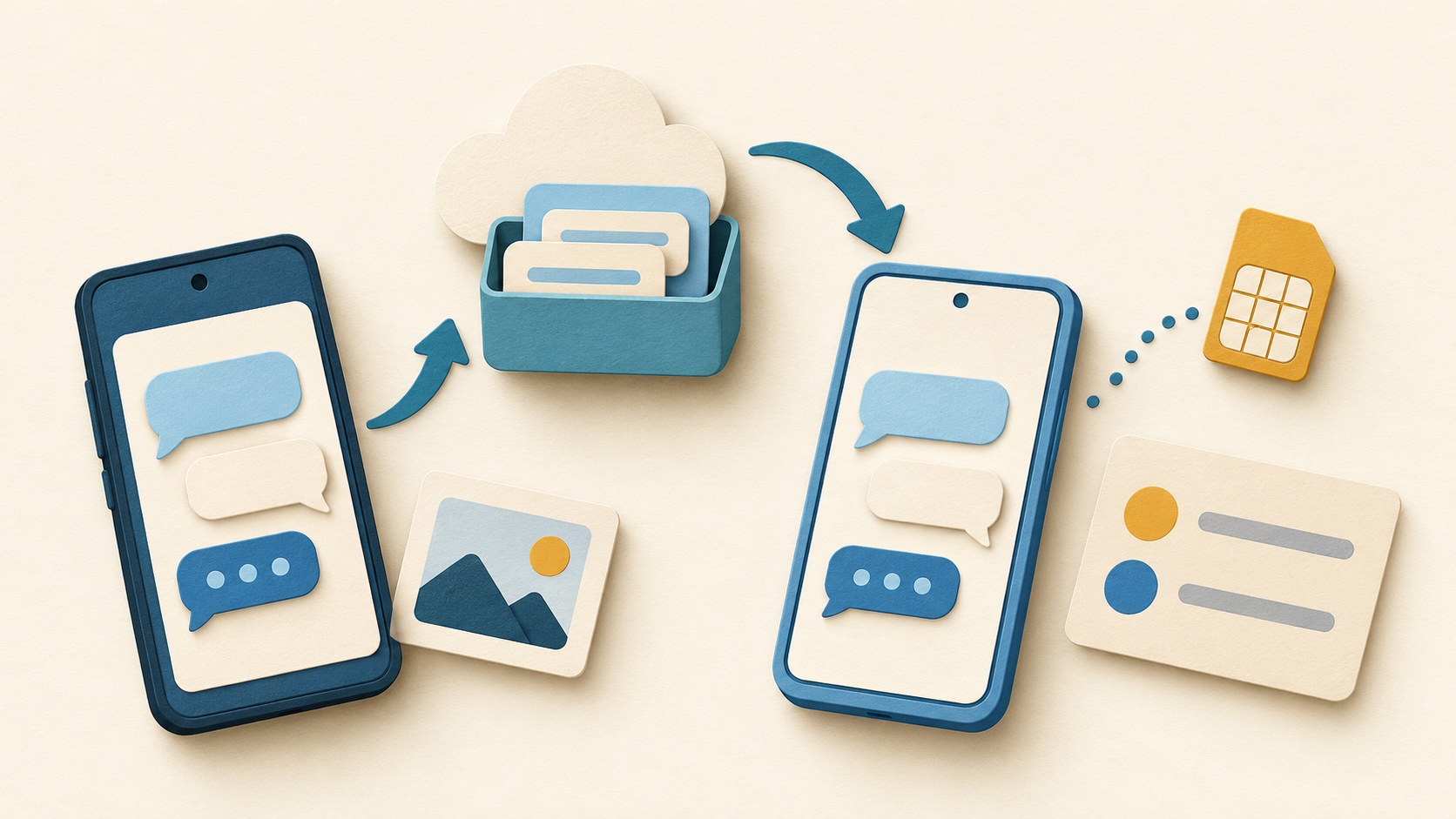
On a new Android phone, verify message history separately from the ability to send and receive new messages. Keep the old device available while checking transfer or backup, the default SMS app, your active phone number and RCS status. Installing Google Messages or selecting a Google account does not by itself prove that every old conversation and attachment was restored.
Sources reviewed 20 October 2026. Documentation-based guide; no message migration, carrier activation or recovery test was performed. Device setup and managed-phone restrictions can vary.
Verify the Google Messages source and device context
Get Google Messages through the Play link in Google’s own getting-started guide. Check the publisher and the actual device eligibility before installing. A similarly named messaging app, a desktop download or a familiar icon is not the same verification.
Google’s official setup guide links to Google Play and explains choosing the default SMS app. Its note that some steps require Android 6.0 or later should not be rewritten as a promise that every current app build and feature supports every phone running Android 6.
- Record the phone model, Android version and the Google Messages listing you reached from official help.
- Check whether the store offers installation or an update for this device. Keep the exact incompatibility or availability message when it does not.
- If the app opens, review the default-SMS choice using the offered supported flow.
- Investigate current number/SIM service and RCS separately from installation and old-history transfer.
- For a managed phone, use the approved installation and account process. An alternative package cannot establish permission to bypass organization restrictions.
Does an installed app prove old conversations moved?
No. Source verification, app installation, message restoration and delivery are separate checkpoints. Follow the transfer and history checks below while the old phone is still available. Do not remove the old installation merely because the new icon appears.
Source/device section reviewed 23 October 2026. No APK installation, carrier or messaging test is claimed.
Before changing phones, identify what you need to keep
Make a short inventory of important conversations and attachments. Identify the old phone, the Google account used for its backup and any files saved separately to device storage. Confirm that you can unlock the old phone and access the required account before you begin. Do not publish private conversations or backup archives to ask for migration help.
Google’s Android device-copy guide describes setup-time transfer choices and limitations. Follow the supported flow for your particular device rather than assuming that copying the app icon copies its entire private state. Organizational management can restrict what transfers.
Use the intended backup or transfer route
Google’s Android backup and restore guidance lists SMS/MMS backup and RCS messages when using Google Messages. It also warns that backup coverage and restoration vary, and that not all apps restore all settings and data. Review the actual backup details for the account instead of treating an enabled switch as proof of a completed backup.
- Check the backup account and available backup details on the old device.
- During new-device setup, follow the supported copy or restore prompts and select the intended account and backup.
- Allow the process to finish before judging the resulting message list.
- Open several known conversations and important attachments on the new phone.
These are verification steps, not a promise that any missing item can be recovered. If setup is already complete and the expected data is absent, ask the device manufacturer or Google support about the supported path for that device. Do not factory-reset repeatedly without understanding the available backup and the data already created on the new phone.
Check the default messaging app
Google’s Messages getting-started guide explains that SMS messages are stored in the device’s SMS database and describes choosing Google Messages as the default app. That is different from moving a database from the old device.
If another messaging app is selected on the new phone, review the default-SMS setting through the supported prompt. Then compare the history shown. Changing the default does not, on its own, establish that a missing old backup has been restored.
Separate old history from new-message delivery
| What fails | Investigate first |
|---|---|
| Old conversations are absent | Transfer route, backup account and restoration completion |
| Old conversations appear, but new SMS does not arrive | Active SIM/number, carrier service and default SMS app |
| SMS works but RCS does not | RCS status and carrier/device eligibility |
| Text is present but an attachment is missing | The specific restored conversation and any separately saved local copy |
Google’s new-device messages and calls guide notes the need for an active SIM or phone number. Record whether the phone can receive ordinary messages before diagnosing only the old history. Charges can depend on the sending method and carrier, so use an appropriate known contact for any delivery check.
Review RCS without toggling it indiscriminately
Google’s RCS setup guidance explicitly advises against routinely turning RCS on and off, because doing so can remove you from group chats. Follow its specific switching or deactivation instructions only when they match your situation, such as moving to a device or app without RCS and not receiving messages.
Do not treat RCS activation as proof that old history restored. Conversely, an old conversation appearing on the new phone does not prove that the current number is registered and receiving new RCS messages. Keep these checks separate.
If you switched from an iPhone
The new-device messages guide points users switching from iOS to the supported iMessage-to-Messages transition. Follow that platform-specific route and carrier instructions rather than applying an Android-to-Android checklist unchanged. Preserving old content and arranging delivery to the current number still require separate verification.
Frequently asked questions
Will signing in to Google Messages restore every old message?
Do not assume so. Verify the actual backup or transfer and inspect important conversations and media.
Should I erase the old phone once new texts work?
New-message delivery is only one check. Confirm the history, attachments, local files and account access that matter before clearing the old device.
Should I keep turning RCS off and on?
Use Google’s scenario-specific guidance. Repeated toggling is not a general history-recovery method.
What should I provide to support?
Give the old and new device models, Android versions, backup/transfer route, exact error and whether the problem affects history, SMS, MMS or RCS. Redact account identifiers, phone numbers and message contents in public reports.
For another product’s account-based history behavior, see the Google Chat new-phone guide; its workflow should not be treated as SMS migration instructions. Browse the Android app guide directory for related help.