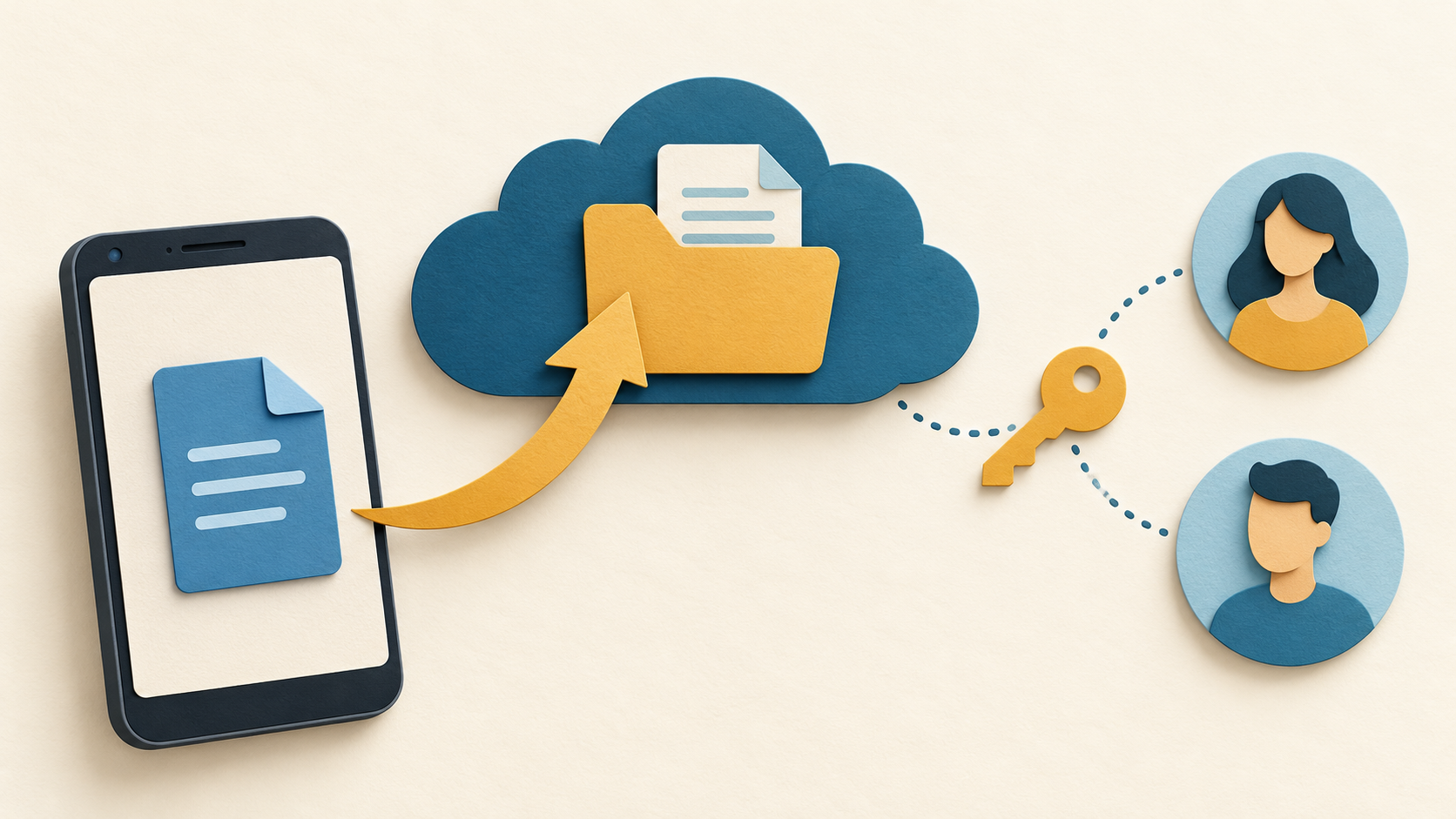
Uploading a file to Google Drive and allowing someone to open it are separate tasks. First confirm that the upload finished in the correct Google account. Then review the file’s sharing settings and give the intended recipient the least access they need. A copied link alone does not prove that another account can open the item.
Sources reviewed 20 October 2026. This is a documentation-based guide; the illustration is not a screenshot or evidence of a device test. Labels can vary with app updates and account policies.
Identify the stage that needs attention
| What you see | Check first | What does not resolve it |
|---|---|---|
| File has not finished uploading | Selected account, connection, transfer settings and available cloud storage | Changing the recipient’s sharing role |
| File exists but recipient cannot open it | Recipient account and Manage access | Uploading another copy without checking access |
| Recipient can view but cannot edit | Whether editing is needed and authorized | Granting Android installation permission |
| APK downloads but will not install | Package and Android compatibility | Making the Drive link public |
Upload from Android and verify the result
- Open the Drive app and check the account shown by its account selector. Keep the local original while the transfer is pending.
- Choose New, then Upload, and select the intended file.
- Let the transfer complete. Locate the item in My Drive before moving it to a different location.
- Open the uploaded item and inspect its name and contents. If it is the wrong file or account, correct that before distributing its link.
Google’s Android upload instructions explain the supported flow. They also note that an upload uses your Drive storage even when the destination is a folder owned by someone else. An ordinary shared folder should not be confused with a Workspace shared drive.
If an upload waits for Wi-Fi or reports full storage
In Drive, inspect Menu > Settings and the Transfer files only over Wi-Fi setting when available. Decide whether to wait for Wi-Fi or allow mobile transfer, considering your data allowance. Google says this option is shown on devices with mobile-network capability. Do not treat a missing switch on another device as a broken installation.
If the message names account storage, check the quota for the account doing the upload. Google’s storage management guidance explains that reaching the account limit prevents new Drive uploads. Review stored material and any applicable plan or organizational allocation before removing anything. Deleting an important local original is not a remedy for a full cloud account.
Record the exact error and whether one file or every file is affected. Keep this evidence when contacting support. Repeated reinstallations or multiple duplicate uploads make it harder to identify which copy should be shared.
Choose who can open the uploaded file
For a specific recipient, use the item’s More menu and Share, select the correct email address, and choose an appropriate role. Review the address carefully before sending. For link settings, open Manage access and inspect General access.
Restricted access requires an authorized account. Anyone-with-the-link access can expose the item to people who receive a forwarded link, so use it only when that wider audience is intended. A work or school administrator may limit external sharing. Google’s sharing and access guide describes these controls and folder inheritance.
Viewer access fits reading; Commenter fits feedback; Editor permits changes. Before increasing access, ask what the recipient actually needs. A parent folder can grant inherited access, so reducing one file’s direct permission may not remove access obtained through that folder. Review the containing folder when the interface directs you there.
When the recipient sees “You need access”
Ask the recipient to check which Google account is active. Access granted to a work address does not automatically apply to a personal address on the same phone. Google’s file access explanation describes requesting permission from the owner. The owner should verify the intended recipient rather than changing every restricted file to public access.
When checking your own sharing setup, use the intended recipient account or an authorized collaborator. Opening the link successfully while signed in as its owner does not establish that another person has permission. Do not send confidential file contents or account recovery codes with a support request.
Review access after the task is finished
Return to Manage access, inspect the people and general-access setting, and remove access that is no longer appropriate. Google’s stop or change sharing instructions explain how file and folder permissions interact. Revoking access does not retrieve a copy that someone already downloaded.
Check Drive on a replacement Android phone
Confirm cloud access and local copies separately before retiring the old phone. Opening Drive on the replacement is not proof that pending uploads finished or that every downloaded file was copied.
- Keep the old device available. Confirm that you can sign in using your normal verification methods before removing its account or resetting it.
- Select the same authorized Google account on the new phone. Open a known file and verify its actual contents, not only the name in a recent-files list.
- Inspect important pending uploads on the old device. Use the upload-completion checks below before depending on a cloud copy.
- For shared material, open the original link in the intended account. A new phone does not change the owner’s permissions.
- Inspect Downloads and other local folders separately. Copy important local-only items through an appropriate transfer route and open the copied files.
- If you need offline access, configure it on the replacement and check the relevant file before relying on it without a connection.
Google’s Android offline instructions describe the file’s More menu → Make available offline, and finding saved items through Menu → Offline. Do not assume the old phone’s offline availability setting establishes that the replacement already has a usable copy.
Missing file, wrong account or unfinished upload?
Compare the same identifiable item on the old phone, the new phone and the authorized web account if available. Record where it is present and which version opens. If only the old device has the latest work, preserve it before clearing data. Creating many similarly named uploads can obscure which copy is current.
Does changing phones require sharing everything again?
Not merely because the device changed. Start with the account and existing permissions. If the owner must change access, request only what is required. Do not make confidential material public to solve an account mismatch.
New-phone section reviewed 23 October 2026. Documentation-based preservation checklist; no recovery or transfer result is guaranteed.
Before sharing an Android backup or export file
Inspect what the file contains and who actually needs it before creating a shared link. A support question about one missing item does not automatically require sending a complete backup. Ask whether a redacted error, file format or minimal example would answer the question instead.
- Identify the artifact. Record privately which app created it, its date and whether it is a backup, an export or a final document. Do not assume the filename describes every included item.
- Check the recipient and purpose. Verify the support destination through the publisher’s official route. Exclude passwords, recovery codes and unrelated private contents from public requests.
- Inspect people, link access and the containing folder. Google’s sharing guide above explains Restricted access, anyone-with-the-link access and inherited folder permissions. Check the actual settings before distributing the file.
- Share only the intended copy. Keep the original recovery artifact available. If a reduced example is appropriate, label it clearly so it is not mistaken for the full restorable backup.
- Review access afterward. Recheck Manage access when the task is finished. Removing a cloud permission cannot establish that a recipient deleted a copy already obtained.
Does an encrypted filename make sharing harmless?
No. A name does not establish what was encrypted, which metadata remains visible or whether a secret is needed to open it. Check the app publisher’s documented backup format. Do not publish a recovery password together with the file.
Backup-file sharing checklist reviewed 3 November 2026 against Google Drive’s Android sharing documentation. No backup file was uploaded, inspected or shared for this guide.
Frequently asked questions
Does a successful upload automatically make a file public?
No. Verify its actual sharing settings and containing folder. Upload completion and recipient authorization answer different questions.
Should I reinstall Drive when a shared link is restricted?
Start with the account and owner permission. Reinstalling an app does not grant access to a file.
Does hosting an APK on Drive verify its developer?
No. File hosting does not establish who built a package. Our Drive APK download guide covers the separate download and source checks. For a package that was obtained but cannot install, use the APK installation diagnosis.
Browse the Android app guide directory for other account, download and installation questions.