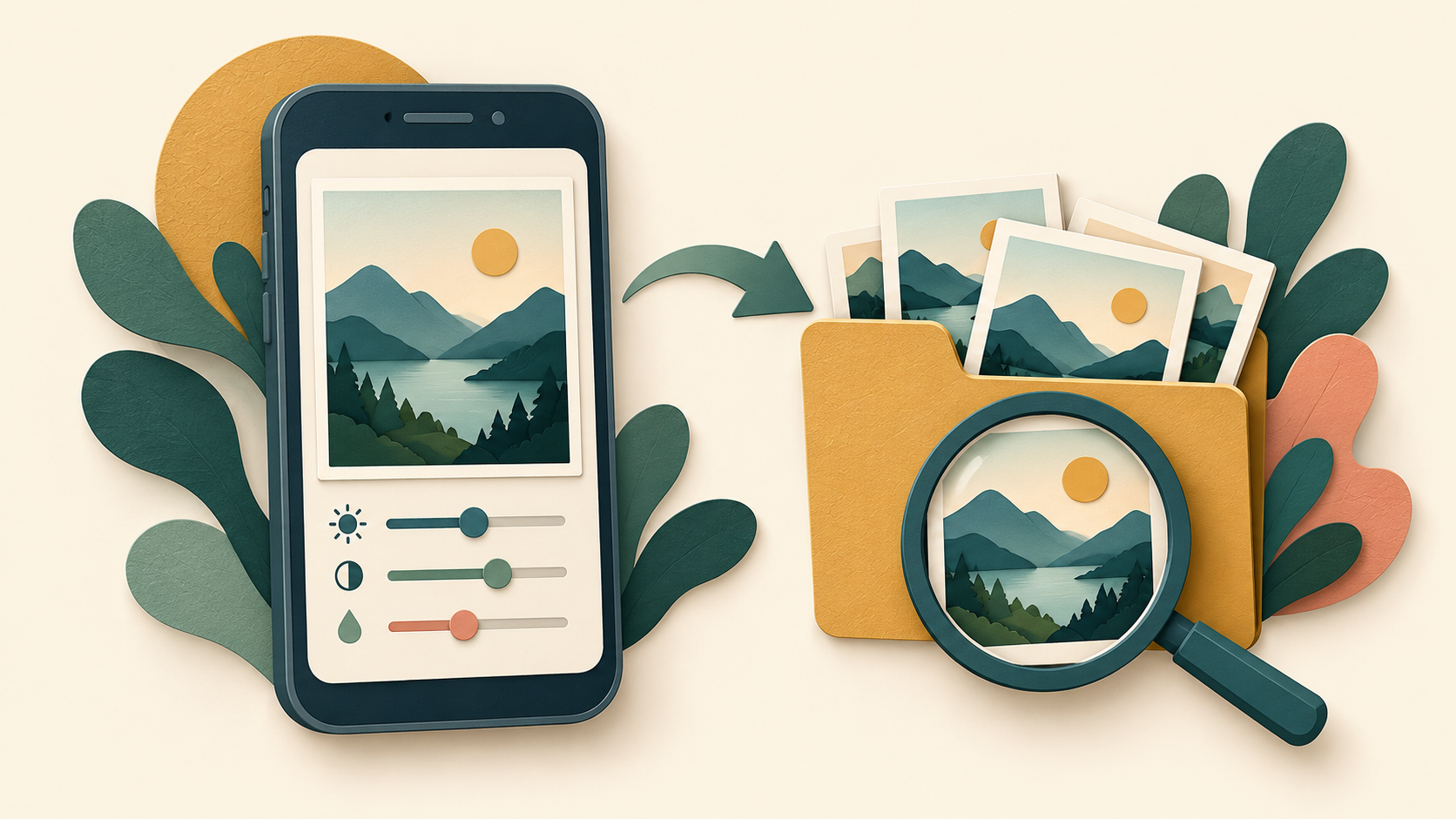
If you cannot find a Snapseed edit on Android, first confirm that you completed the app’s Save action. Then look for the resulting local image, rather than assuming that a share attempt or a cloud photo view proves it was saved. Keep the original and the editing session available while you work out which stage failed.
Official help reviewed 20 October 2026. No device save, export or recovery test was performed for this guide. Android versions, gallery apps and Snapseed releases can show different labels and locations.
Separate saving, sharing and backup
Google’s Snapseed Save, Share, Export help gives the Android save route as EXPORT > Save, and its sharing route as EXPORT > Share. Follow the controls available in your installed Android release and note any completion message or error.
The same help page has a separate iOS section. Do not assume an album location or edit-stack behavior described under iOS is a guaranteed Android destination. This guide therefore does not promise a fixed storage path that has not been verified on your phone.
| Stage | Question to answer |
|---|---|
| Edit is still visible inside Snapseed | Was Save completed, or is the image only open in the editor? |
| A local image exists | Is it the edited output, the original or an earlier copy? |
| It appears in a cloud photo account | Was the intended device folder backed up to that account? |
| A recipient cannot see it | Was sharing completed and is the attachment or link accessible? |
Repeat one controlled save, not many anonymous attempts
- Keep the original photo intact and confirm that the current editor shows the changes you want.
- Use the documented Android Save route once. If an error appears, record the exact wording and stop treating the operation as successful.
- Check the saved output using a gallery or file-manager details view. Note the name, location, timestamp and visible changes where those details are available.
- If multiple copies exist, compare them before deleting anything. An image with a similar thumbnail may be the original or an earlier edit.
These are diagnostic actions for you to carry out, not evidence that this site has tested your photo or established where it was written. A screenshot of the editor is also a different artifact from the image saved by the app.
Look in device folders, not only the main photo timeline
Google’s missing-photo guide recommends checking Collections > On this device in Google Photos for images from other apps. Inspect the available device folders and compare the actual content. If you use another gallery, use its corresponding device-folder or file view.
If the photo exists locally but is absent from a Google Photos account, inspect the active account and the selected device-folder backup settings. A local save and a completed cloud backup are separate events. Do not erase the local copy merely because backup is enabled.
The Google Photos guide also discusses recently added items and unexpected timestamps. A timeline is not always the best evidence of when an edited file was saved. Check file details and relevant folders instead of relying only on the first images shown in a grid.
If Save reports an access problem
Read the actual message before changing settings. Google’s Android app-permission guide describes reviewing Settings > Apps > the app > Permissions. Inspect any relevant permission shown for Snapseed on your device. This article does not claim that every release requests the same storage permission.
Do not approve unrelated access or install a modified package in the hope that it fixes a missing photo. If an action is blocked, record the device model, Android version, installed Snapseed version and message for support. Preserve the original and any existing output before considering steps that remove app data.
Verify the file before uploading or sharing it
Open the intended saved copy and compare the visible edit. Then choose that file in the destination app. If you are uploading to a cloud service, check that the correct file and account were selected. Our Google Drive guide explains upload completion and recipient access; the OneDrive photo-folder guide covers a different backup workflow.
Plan the edit and keep a checked output copy
Keep the original image while you make and verify an edited copy. Before changing the photo, decide whether you need a crop, a color adjustment or a shareable finished image. A picture visible inside the editor and a file another app can open are different results.
- Retain an independent original and note which image you opened. Avoid using several near-identical copies without a way to identify them.
- Make the intended adjustment, then inspect the full image and important details at a useful zoom level.
- Save using the Android controls available in your release. Google’s official help describes EXPORT → Save for Android; it lists more detailed copy/stack behavior separately under iOS. Do not assume those iOS labels establish what your Android version does.
- Open the resulting file outside Snapseed and compare its visible changes, dimensions and orientation with what you intended.
- When sharing, select that checked output and verify the attachment or destination copy. Keep the original until the delivered version is confirmed.
Does a larger exported image restore lost detail?
No. Enlarging a small or blurred source cannot establish detail that was never captured. Check the source before repeating exports. If a website later crops or compresses the uploaded picture, compare that result with your local saved image before changing the edit.
Can I assume the export preserves every edit for later reversal?
Do not assume so across platforms, versions or receiving apps. Retain the source and check the controls on the installed Android release. Use the official Save, Share, Export guidance with its platform headings in view.
Editing/output section reviewed 23 October 2026. Documentation-based workflow; no physical-device export result is claimed.
Frequently asked questions
Does opening Share guarantee that a local copy was saved?
No. Establish which action completed. A share destination and a saved local image should be checked separately.
Should I always expect a folder named Snapseed?
Do not use an assumed folder name as the only test. Inspect the actual local folders and saved-file details on your device.
Is reinstalling the first step?
No. Keep important originals and editing state available while checking Save, local files and any reported access problem.
Is a missing file the same as incorrect exported dimensions?
No. First locate the intended output. Our Canva dimensions guide illustrates the separate distinction between a saved image’s dimensions and its appearance, using Canva’s own controls.
Browse the Android app guide directory for related help.