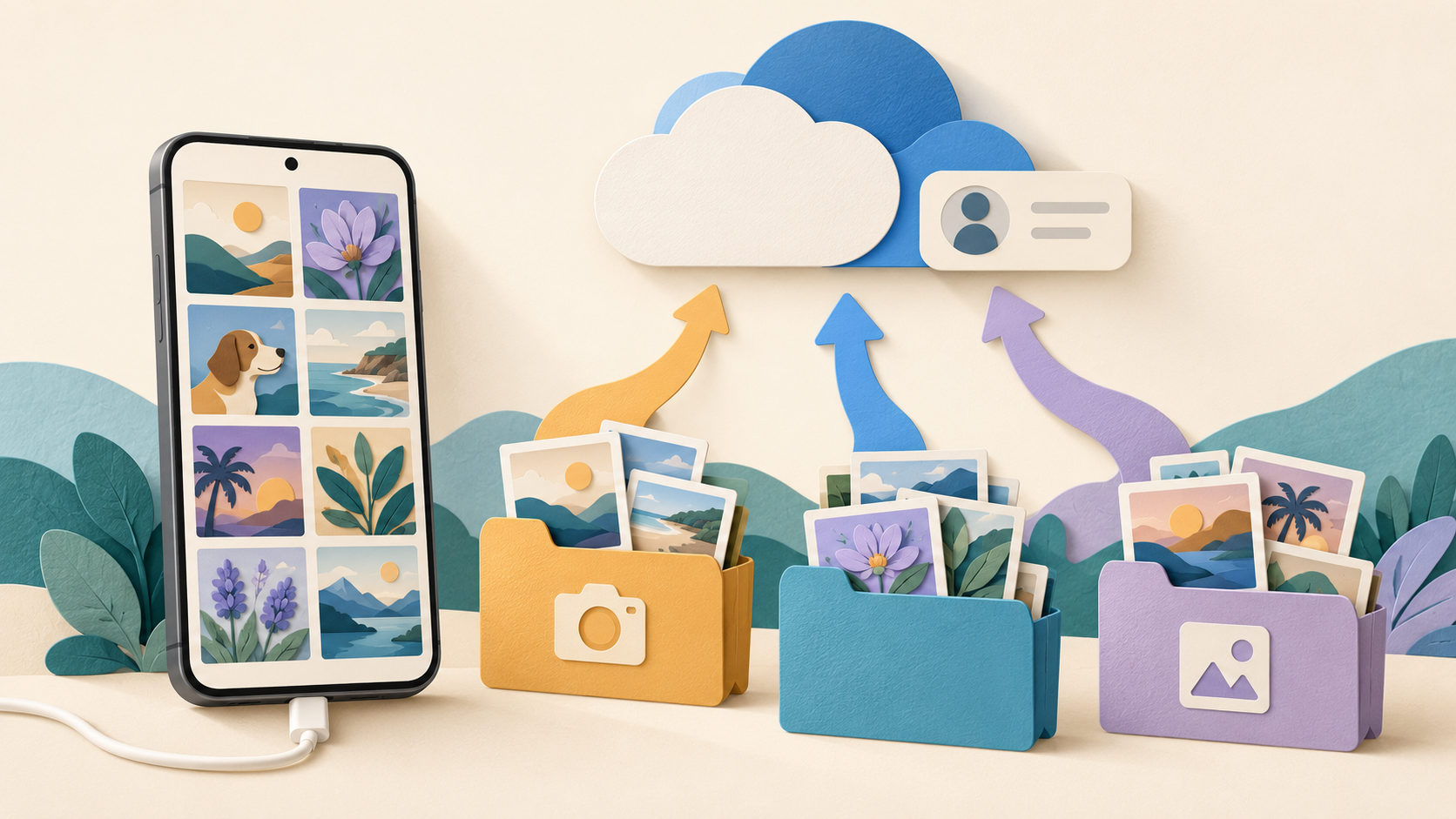
In OneDrive for Android, confirm the camera-backup account before enabling uploads, then choose any additional device photo folders you want included. Verify several important photos in OneDrive before deleting or resetting anything on the phone. Camera backup, a manual file upload and a downloaded offline copy are different operations.
Sources reviewed 20 October 2026. This is a documentation-based workflow, not a tested backup or restoration report. Menu labels, device permissions and organizational policies can vary.
Choose the account and photo folders
Microsoft’s Android camera-backup guide documents one camera-backup account at a time. Confirm whether it is your personal or work account.
- Open the account image in OneDrive and review the current account.
- Enable camera backup and review the photo/video request.
- For additional picture locations, open Settings > Camera backup > Back up device folders.
- Select folders; review categorization to retain their organization.
Camera backup is not two-way synchronization. Separately check the consequences of any cloud deletion or move.
Use a small verification checklist
| Check | Evidence to look for |
|---|---|
| Identity | The destination is the intended personal or organization account. |
| Coverage | A recent camera photo and a photo from each selected extra folder appear. |
| Usability | The intended cloud file opens and has the expected content. |
| Recovery | You understand how to regain access to the account and obtain a local copy when needed. |
These are checks you can perform, not results of a test carried out for this article. One visible photo does not establish that an entire library finished uploading. Keep important originals while investigating missing items.
If only some photos or videos appear
Microsoft’s Android troubleshooting page recommends checking the upload account, network choice, charging-only setting and whether videos are included. It also points to account storage as a possible reason camera upload stops.
Record whether the problem concerns every new photo, one device folder or videos only. Check the exact message and the account’s storage status. That distinction helps narrow the cause without repeatedly reinstalling the app. If you elect to allow mobile-network uploads, consider the size of the library and your data plan.
Do not begin with clear-data or uninstall operations while important local-only photos, pending uploads or account access are uncertain. Preserve the originals and use the current official support route for the specific symptom.
For a one-off file, use manual upload
Microsoft’s manual upload instructions describe using Add to upload a file or photo and creating folders in the Files view. Use that route when you want to place a particular item rather than enable ongoing camera backup.
Choose the intended destination, upload the file, then locate and open the resulting cloud item. Give copies distinct names when necessary so you can tell a new upload from an earlier one. A manual upload of one photo does not demonstrate that the automatic backup settings are correct.
Samsung Gallery sync changed in September 2026
Older tutorials can describe a direct Samsung Gallery–OneDrive synchronization route. Microsoft’s Samsung Gallery change notice explains the move away from direct Gallery sync and the need to use OneDrive camera-roll backup after 30 September 2026.
If you relied on that integration, follow the current notice rather than assuming a previously linked account still provides the same workflow. Inspect existing cloud photos and the settings for backing up new ones. The presence of old pictures does not prove that new pictures are being uploaded.
Know how to obtain a local copy
Microsoft’s Android download guidance describes opening the OneDrive folder in list view, choosing More beside a file, then Save and a device destination. Upload and download arrows serve opposite purposes; check the destination and confirm that a local file exists when you need one.
A thumbnail in a cloud listing is not the same evidence as a completed local download. Keep that distinction in mind when preparing for travel, changing phones or freeing storage.
Verify OneDrive on a new Android phone
Check the same account’s cloud files, local-only material and offline copies separately before retiring the old phone. A successful sign-in or one visible photo is not proof that the entire old device has been preserved.
- Keep the old phone available and confirm your normal account sign-in and verification route before removing anything.
- Select the intended personal or work OneDrive account on the replacement. Compare a known folder and several important files, including recent items.
- Inspect unfinished uploads and selected photo folders on the old phone using the backup checks above. Keep originals until the intended cloud results open.
- Review camera-backup account and folder choices on the replacement. Do not assume that an old phone’s settings prove new photos will be uploaded.
- Copy important files stored only in the old phone’s local folders separately. Open the actual copied files.
- For offline needs, prepare and check the required items on the new device rather than relying on the old phone’s offline list.
Microsoft’s Android offline guide describes Keep offline and the Files Available Offline view. It also distinguishes file and folder access and notes a subscription requirement for offline folders. Check the available control and entitlement for your account.
Will OneDrive restore every app’s data?
This guide establishes no such guarantee. A photo-backup or file-access workflow is different from each app’s private data and account recovery. For a work phone, follow the organization’s device replacement process.
What if the old phone has a file the new one cannot open?
Compare its actual location, account, version and access requirements. Preserve the original while investigating. Re-uploading multiple copies or clearing the old installation before identifying the difference can make recovery harder.
New-phone section reviewed 23 October 2026. Documentation-based preservation checks; no migration result is claimed.
Frequently asked questions
Will selecting a folder back up every Android app’s private data?
No such claim is made by this photo workflow. Camera backup is not a general replacement for each app’s documented data export or phone-backup process.
Can I use separate camera-backup accounts simultaneously?
Microsoft documents one account at a time for this feature. Verify the selected identity before enabling it.
Does an old Samsung Gallery tutorial still apply?
Compare it with the September 2026 change notice and use the current documented OneDrive route.
What should I send to support?
Describe the account type, device, relevant folder, exact error and whether new photos or videos are affected. Redact personal photos and account details from public reports.
Our Android permission guide explains general access choices. For a different service’s upload and sharing controls, see Google Drive on Android; do not assume its settings are identical. Browse the app guide directory for related help.