Sources reviewed 18 October 2026. Documentation-based guide; no physical-device test is claimed.
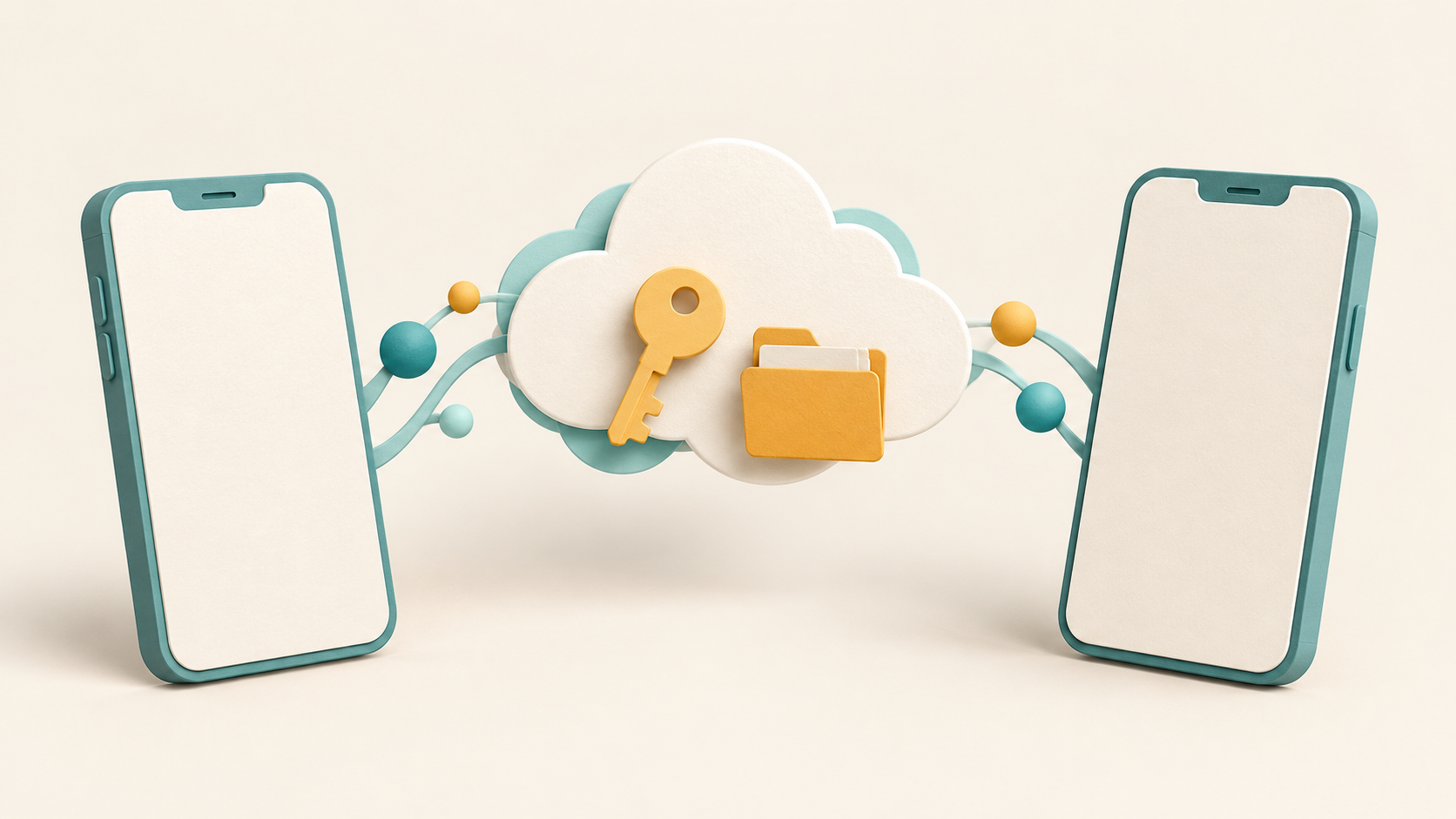
Getting Slack onto a new phone starts with signing into the correct existing workspace, not creating a new workspace or copying an APK. Keep access to your old device and email until you have checked each workspace you use.
Write down the access details first
Make a private checklist containing workspace names or URLs, the email address used for each, and whether you normally use an organization’s single sign-on. Do not put passwords, one-time codes or recovery codes into a public support request. A new phone can expose an account mismatch that was hidden by an existing session.
Slack’s sign-in guide explains the supported sign-in routes and adding other workspaces. Use the method associated with your existing membership. If an organization requires SSO, follow that organization’s approved route rather than creating a parallel personal account.
Check authentication before retiring the old phone
If you use two-factor authentication, installing Slack does not itself transfer your authenticator’s account entries. Slack’s two-factor authentication guide covers backup codes and recovery through the workspace owner or administrator if access is lost. Store recovery information privately and follow your employer’s requirements.
- Confirm that the email address and organization sign-in are accessible.
- Prepare the supported recovery route for your authentication method.
- Install Slack through its official distribution route.
- Sign into one existing workspace and confirm its name before continuing.
- Repeat for other memberships; one successful sign-in does not verify them all.
Check access, files and local copies separately
| Check | Question to answer |
|---|---|
| Workspace access | Can the correct account open the expected workspace? |
| Conversation access | Can you open a known channel or conversation that your membership permits? |
| Files | Does the specific file open through its original conversation or authorized source? |
| Local downloads | Do you need to move a separately saved phone file? |
Treat downloaded files as a separate inventory. Do not promise that every local file, draft or old item will appear merely because sign-in succeeded. Workspace membership, available history and document permissions need to be checked for the actual item.
What if the new phone opens the wrong workspace?
Compare the account email and workspace URL with your checklist. A recognizable display name alone is not a reliable match. Ask the workspace administrator about the missing membership; do not keep creating new workspaces to solve access to an existing one.
What should you send support?
Provide the device model, Android version, app version, sign-in route and exact error, with sensitive values removed. Explain whether the old phone still works. If the app cannot install at all, use the separate installation troubleshooting guide before diagnosing account access.
For broader app setup checks, browse the Android app guides. No account migration was performed as a test for this documentation-based article.
Check the official Android source and device support first
Download and system-requirements pages reviewed 21 October 2026.
Start from Slack’s Android download page, which directs users to Google Play. On an employer-managed phone, use your organization’s approved app-distribution route. A downloaded APK alone does not transfer workspace membership or resolve a sign-in requirement.
At this review, the system-requirements table lists Android 11 or later, app version 25.05.20 or later, and Google Play Services installed by default. These are documented support minimums, not a claim about the newest release or a promise that every device works. Slack says it revises requirements in May and November, so recheck the table when setting up your phone.
The download-page FAQ displays a different older app-version minimum. Use the dedicated requirements table and the store’s current device-specific result, rather than treating the two numbers as identical. If they conflict with your installation screen, record the discrepancy for Slack support or your administrator.
- Find the phone’s Android version and compare it with the current requirements.
- Open the publisher’s distribution route or your managed app catalog.
- Record any availability or update message separately from a workspace sign-in error.
- Once installation succeeds, continue the account and recovery checks above.
Do not keep trying older APK files as a substitute for supported platform or organization access. Installation compatibility and authorization to enter a workspace are separate checks.