Sources reviewed 18 October 2026. Documentation-based guide; no physical-device test is claimed.
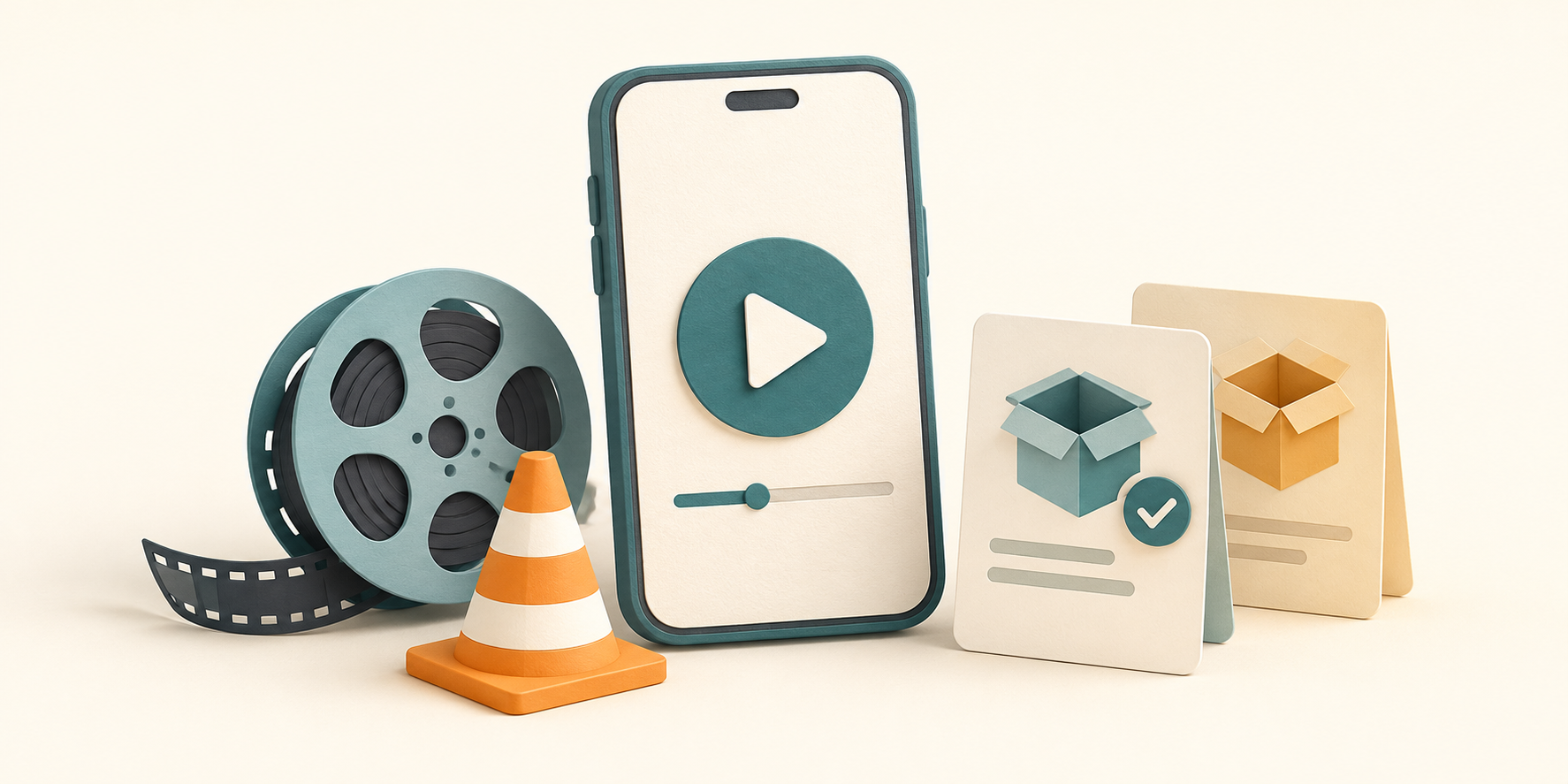
Start at VideoLAN’s Android download page to obtain VLC from a publisher-linked store or its APK mirrors. Choose the Android release and a build your device supports. A matching app name or orange cone on another website does not establish who supplied the file.
Choose an official starting point
VideoLAN’s Android page links to Google Play, Amazon, Huawei AppGallery, F-Droid and direct APK mirrors. The Google Play destination identifies the package as org.videolan.vlc. Follow a publisher link instead of a search advertisement promising a special unlocked edition.
At review, VideoLAN lists Android release 3.7.0. This is a dated observation, not a promise that it will remain the latest release. Recheck the page when downloading. VLC is a media player; installing it does not grant access to paid films or streaming subscriptions.
Store installation or an APK?
| Route | What to check |
|---|---|
| Publisher-linked app store | The listing and device eligibility shown by that store. |
| VideoLAN APK mirrors | The release folder, variant and exact downloaded file. |
| An unrelated repackaged APK | Do not assume VideoLAN supplied or approved it. |
Check the device before choosing a variant
The download page distinguishes older Android support from the current version. It currently pairs Android 4.2 with “platform-14,” which is an inconsistent version/API label. Do not use that line alone to decide compatibility: check the selected release’s requirements and the store or installer response on your device. An old supported release is not equivalent to a maintained current release.
When a direct download offers architecture variants, use the device’s supported Android ABI rather than guessing from RAM or the processor’s advertising name. Our ARM64 versus ARM guide explains the distinction. Package formats are covered separately in APK, XAPK and APKM explained.
Make the first playback check useful
- Install through the chosen official route.
- Open a small local video that you own and know should play.
- Grant media access only as needed for the files you intend to open.
- Record whether the problem concerns installation, finding files, sound or a particular video.
This separates a package problem from a media problem. If the installer fails, use APK installation troubleshooting; if a library is empty, first check the file location and allowed access.
Does an official download guarantee every video will play?
No. File condition, available tracks and device decoding support still matter. VideoLAN describes both software and hardware decoding, with hardware support varying by device. This article reports documentation, not a device benchmark or a universal playback test.
See the Android guide directory for related installation help.
Match VLC access to the feature you are using
Publisher listing and Android permission guidance reviewed 21 October 2026. No on-device permission test was performed.
The publisher’s Google Play listing explains access by purpose. Its broad category names are not a screenshot of your current Android prompts; labels and available choices can vary by Android and app release.
| Task | Publisher-described access purpose | Check before changing access |
|---|---|---|
| Find local audio/video | Read media files | Actual file location and currently allowed media scope |
| Delete media or save subtitles | Write/modify storage | Whether that specific action is intended |
| Open a network stream | Network access | Stream address, reachability and any required authorization |
| Custom floating playback widget | Draw over other apps | Whether you use that optional display mode |
| Voice search on Android TV | Microphone, described as TV-only | Device type and exact feature requesting it |
Do not grant every available access merely because a video fails. A damaged file, inaccessible network share and unavailable local-media permission are different diagnoses. The listing’s explanation is a starting point for matching the prompt to a task, not proof that all permissions are required on every phone.
Google’s Android permissions guide describes Settings → Apps → the app → Permissions to inspect allowed and denied access. Review the actual prompt before deciding on a change. Special access such as overlays may appear separately from ordinary app permissions. For each supported change you intentionally choose, retry the same file or action and record the result.
Keep the app version, Android version, file/stream type and redacted error for support. Avoid sending private media, network passwords or a complete storage listing in a public report.