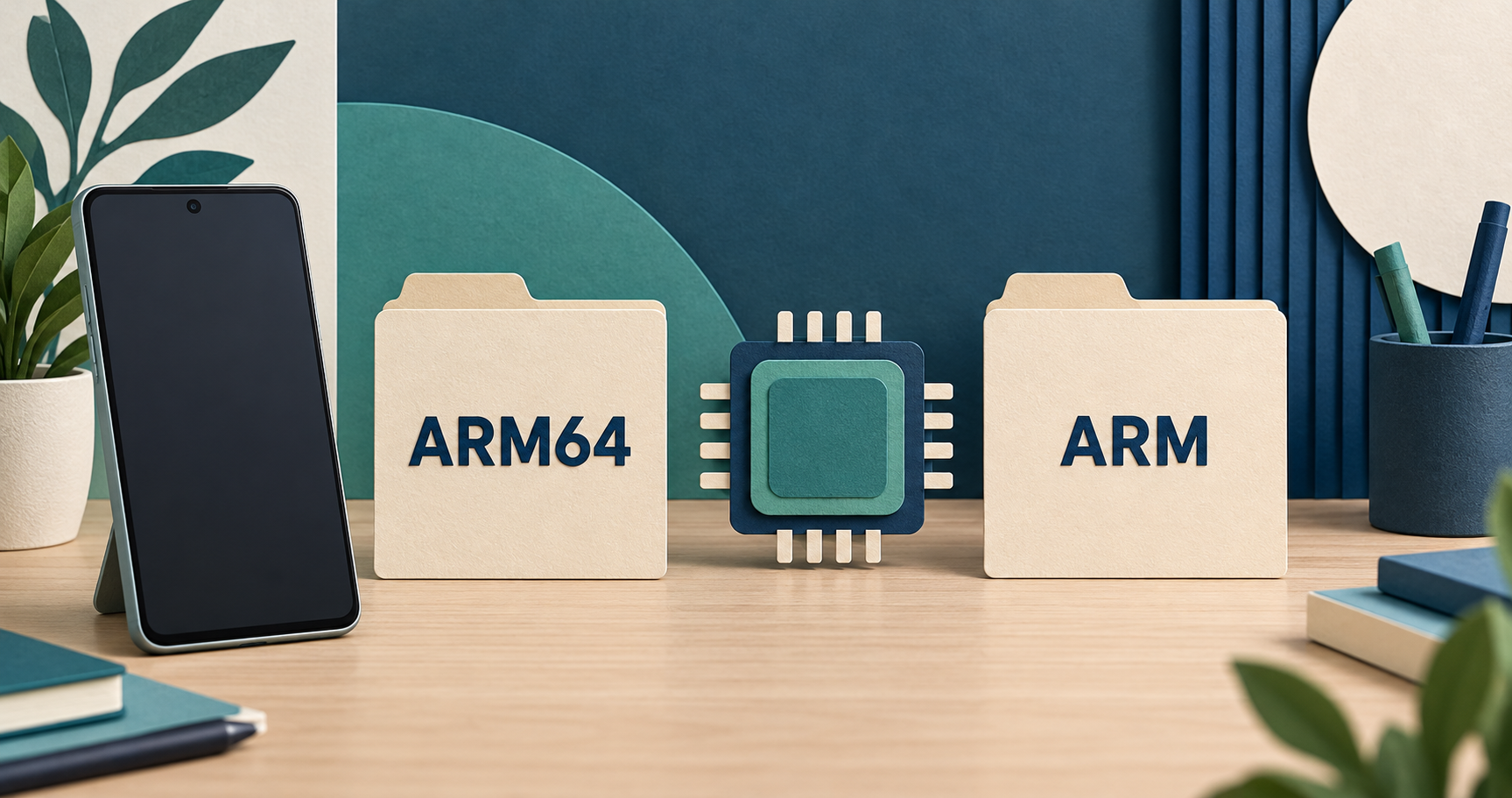
For Android APK variants, arm64-v8a identifies 64-bit ARM native code and armeabi-v7a identifies 32-bit ARM native code. Choose a build supported by your device’s Android system and the app’s release requirements. A processor marketing name, RAM amount or the word “ARM” alone is not enough to make that choice.
Reviewed October 16, 2026. This is a documentation-based compatibility guide, not a benchmark or hands-on test of your phone or any downloaded APK.
Read the full architecture label
| Label | Meaning | Question to resolve |
|---|---|---|
| arm64-v8a | 64-bit ARM ABI | Does the Android system support this ABI? |
| armeabi-v7a | 32-bit ARM ABI | Does the system support 32-bit ARM apps? |
| x86 / x86_64 | Different native-code ABI families from ARM | What does your actual device or emulator support? |
| Universal | A distributor’s package label | Which architectures and Android versions does that release actually include? |
An ABI is an interface used by native machine code. Android’s official ABI guide explains the architecture names and packages containing libraries for multiple ABIs. “Universal” should be checked against the release details rather than treated as a promise of support for every Android device.
Check system support, not only the chip name
Android exposes the system’s supported ABI list through Build.SUPPORTED_ABIS. It also exposes separate lists for supported 32-bit and 64-bit ABIs. The supported list is ordered by preference. This is more relevant to package selection than guessing from storage capacity or RAM.
If you use a device-information app, look for a clearly named supported ABIs or software architecture field. A generic “64-bit CPU” result describes hardware and may not answer which app ABIs the installed Android system accepts. Use a trusted tool with an identifiable developer, or ask device support for that specific information. Do not install several unknown tools just to compare their labels.
A practical example of choosing between two downloads
Suppose a verified publisher offers two builds of the same release: one marked arm64-v8a and another marked armeabi-v7a. First establish the device-supported ABI list. Then check the minimum Android version, package format and update instructions. The architecture label answers only one compatibility question; it does not settle the others.
If the source lists only “ARM” without the complete ABI or device requirements, pause and ask for clarification. Do not interpret a shorter name as an older release or a lighter app. Our APK version-selection guide covers the wider release decision.
Before you replace an installed app
- Confirm the exact app. Compare the publisher and release page, not only the icon. Use the source and permission checklist if identity is unclear.
- Compare all requirements. Record the full ABI label and required Android version. Avoid changing several things at once while diagnosing an error.
- Identify the package format. An architecture label is different from a container extension. See APK vs XAPK vs APKM if the file is not a standalone APK.
- Protect local data. Check the app’s backup and recovery options before uninstalling or clearing storage.
- Keep the exact error. If installation fails, use the installation troubleshooting guide rather than repeatedly trying random versions.
Will ARM64 make the app faster?
This guide does not provide performance measurements. A filename is not a benchmark: a fair comparison would need the same app release, device, workload and test conditions. Choose the publisher-supported build for compatibility first. Do not promise better battery life or gaming performance simply because one download says 64-bit.
Frequently asked questions
Does Android version tell me whether to choose ARM or ARM64?
It does not replace an ABI check. Record the Android version and supported ABI information as separate requirements.
Can I rename an ARM APK to ARM64?
No. A filename change does not rebuild the native code inside a package.
Is universal always the best download?
Check what the publisher means by that label. The release still needs to meet device, Android version and installation requirements.
Does the right ABI prove an APK is safe?
No. Architecture compatibility does not establish publisher identity or file safety.
What information should I send the developer?
Provide the device model, Android version, supported ABI list, exact release page and full error message. Remove personal account details from screenshots.
Choose the next guide for your problem
For saving and opening a verified standalone package, follow our Android APK installation guide. For a transfer that does not finish, use the download failure checklist. Browse the Android guide directory for related help.
For a publisher-specific example of Android download routes and variant checks, see our VLC for Android source and build guide. Compare the actual publisher release with the package format and device requirements before choosing a variant.