
Use the CapCut desktop installer for your computer’s operating system. An Android APK is not a native Windows or macOS installer. This guide explains the official desktop route and practical checks before installation or troubleshooting.
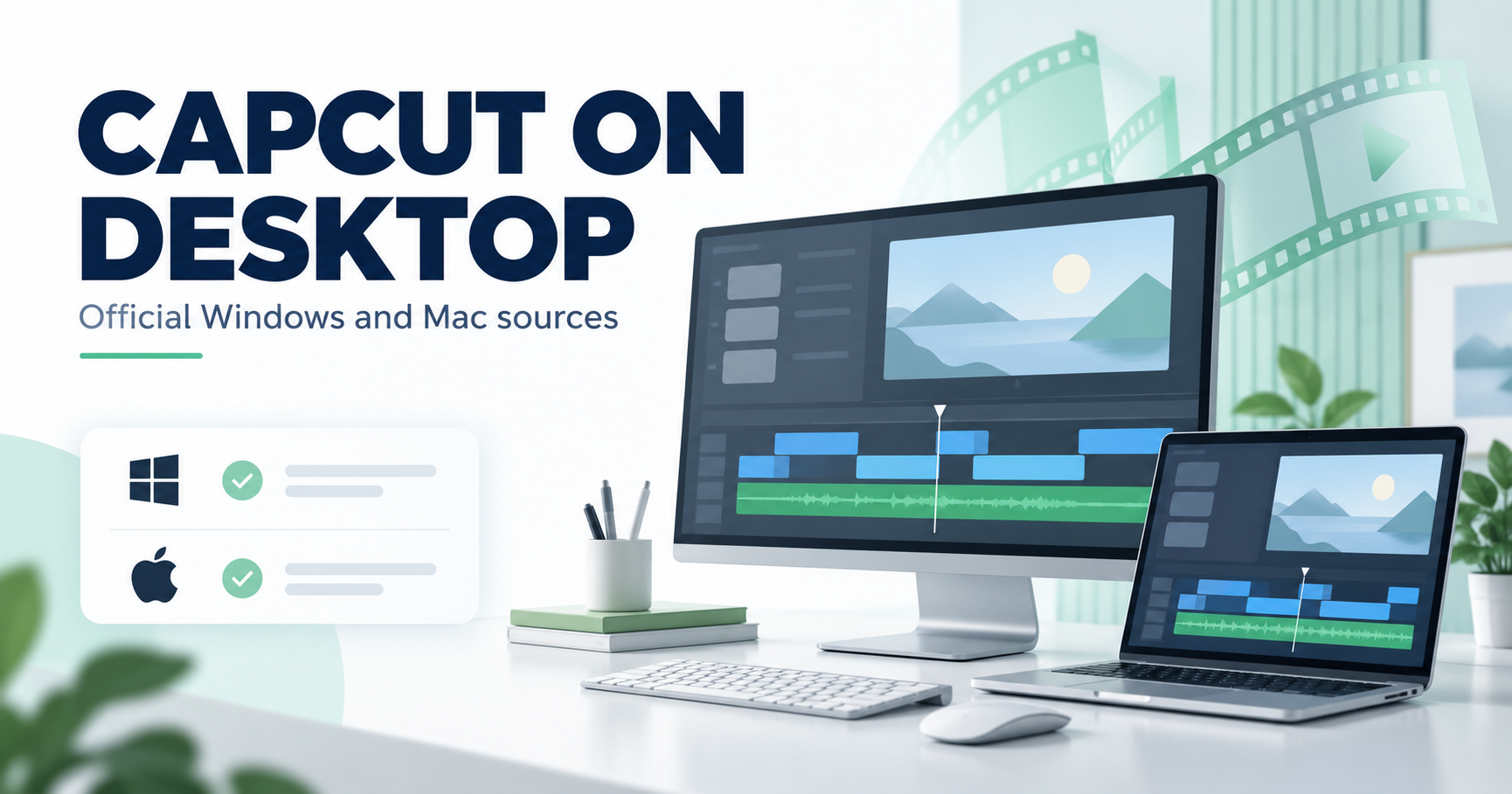
Choose Windows or macOS at the publisher
Open CapCut’s official download page and select the route for your computer. Its desktop installation guidance describes Windows and Mac options. Check the publisher information at any store destination and avoid a third-party file described only as “CapCut PC APK”.
Before running the installer
Check the current system requirements at the publisher and available disk space on the drive you will use. Keep the installer’s source clear. A video editor’s installation requirement is different from the resources needed for a large project, effects or exports; this guide does not guarantee smooth 4K editing on every computer.
A careful installation workflow
Download the matching official installer, locate the downloaded file and follow the operating system’s installation prompts. Read permission requests rather than automatically approving every prompt. Do not bypass operating-system security warnings to run an unidentified package.
After installation, begin with a small, non-sensitive sample clip. Check import, timeline editing and a short export before moving an important project. This is a suggested verification workflow, not a claim that we ran a benchmark on your hardware.
Free app features and Pro prompts
Installing the editor does not establish that every effect, template or export option is free. Check the current app’s plan information. For a Pro prompt, identify which premium material the project uses before troubleshooting the installation. Read our guide to CapCut Pro and mod claims.
When installation or launch fails
Record the exact message, operating system, installer source and free storage. Consult CapCut’s installation troubleshooting. Protect source clips and project files before uninstalling or clearing app data. Avoid assuming a different installer or an Android emulator will resolve every error.
Frequently asked questions
Do I need an Android emulator for the desktop app?
The publisher provides desktop download routes. An emulator is a different environment and is not a prerequisite for a native installer.
Can I rename an APK to install it on Windows?
Renaming a file does not convert it into a native desktop application.
Will all drafts survive reinstalling?
Check project storage and keep backups; do not assume local drafts are preserved.
Is every Pro feature included in a free download?
Check current feature entitlements in the genuine app; a download alone does not confirm them.
Sources and review scope
Reviewed 15 October 2026 using CapCut’s publisher download, desktop and installation-help pages linked above. No installer benchmark or project-migration test was performed for this article. For a phone, use the Android CapCut guide.
Very Good Article Thank You