If an exported Lightroom photo looks different on Android, first compare the same saved file under the same viewing conditions, then check the export choices and whether the edit uses HDR. A difference in another app is not enough to identify a failed edit, a damaged file or a universal fix.
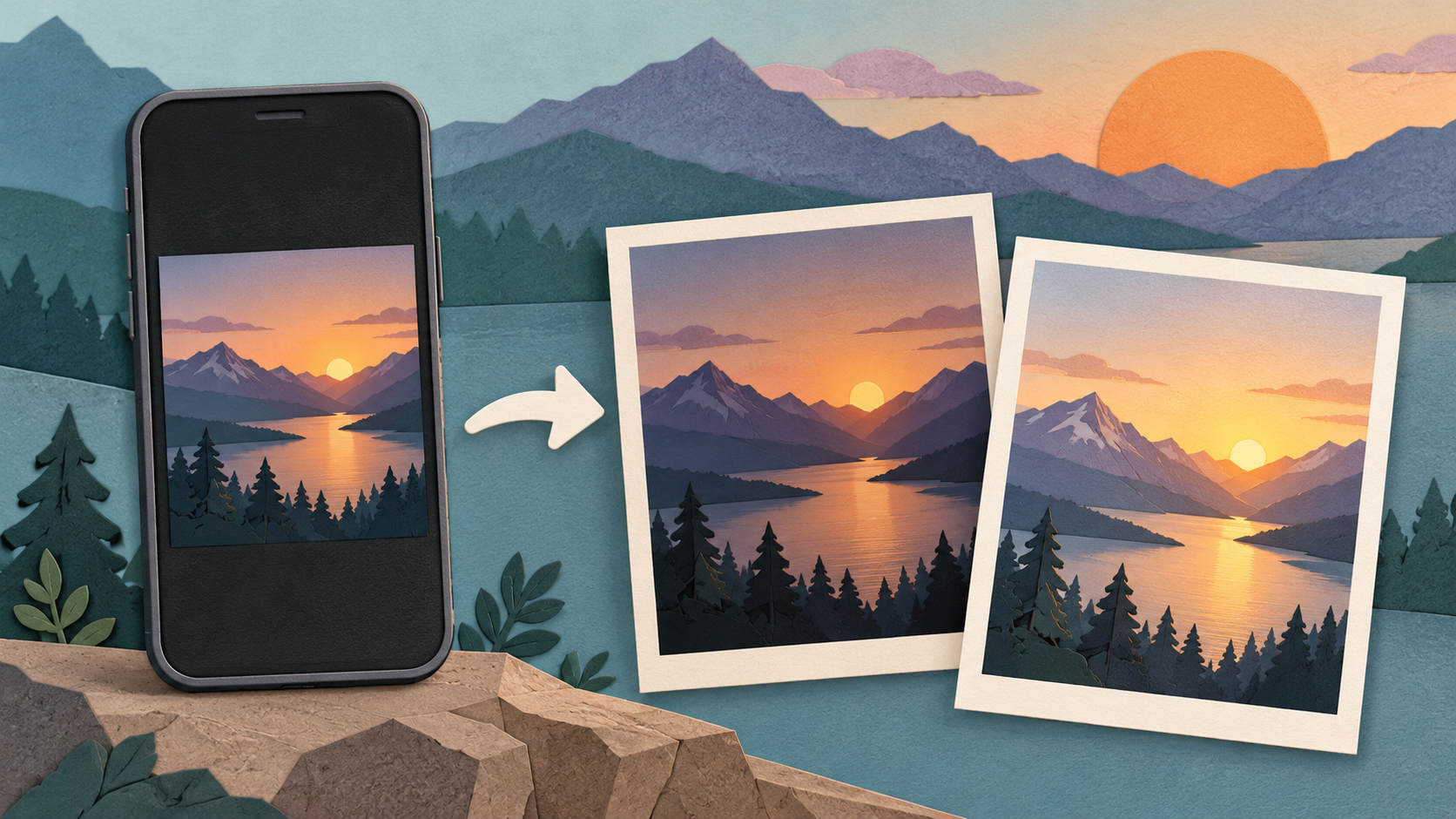
Official Adobe documentation reviewed 20 October 2026. No physical-device export or color measurement was performed. The cover is a conceptual illustration, not evidence of Lightroom rendering behavior.
Keep the original edit while investigating
Keep the source photo and the edit available. Use separately named comparison exports rather than overwriting your only copy or repeatedly changing exposure to compensate for an unexplained result. Write down where the difference first appears: inside Lightroom, in a local viewer, or after an upload.
| Observed difference | Compare first |
|---|---|
| Highlights look less bright elsewhere | HDR editing and the SDR preview, then the destination’s HDR support |
| The exported image looks smaller or softer | Actual exported pixel dimensions and quality settings |
| A file looks right locally but different after upload | The local export versus the uploaded result |
| Export closes the app | The exact version and matching Android issue in Adobe’s issue tracker |
Record the actual export settings
Adobe’s mobile export guide distinguishes Share → Export as, where settings can be selected, from Save copy to device, which uses defaults. On the Android instructions, file type controls which options are available.
- Open the intended photo and choose Share, then Export as.
- Record the file type and any visible dimensions and quality choices.
- Save a separately identifiable copy and locate that actual file.
- Compare its dimensions with the size needed for your destination.
Do not diagnose the output from a thumbnail alone. If you change an export setting, record it and compare the resulting file before changing another. This makes a useful support report and helps distinguish a sizing problem from a tonal difference.
Check the HDR edit and SDR preview separately
Adobe’s HDR editing guide documents Edit → Light → Edit in HDR Mode for Android. It also describes Preview for SDR display and SDR Settings for reviewing the standard-display appearance.
If your edit uses HDR, review that SDR preview before concluding that every dimmer rendition is a lost edit. Use the documented controls to inspect the intended standard-display result. HDR support depends on the device and workflow; consult Adobe’s current compatibility guidance instead of assuming that the presence of a switch proves equivalent output on every phone.
Use the Android export instructions
Adobe’s HDR export page separates Android and iOS. At this review, its Android section documents an HDR Output toggle for AVIF and says TIF preserves HDR data by default when the photo was edited in HDR mode. The page’s iOS section includes different format and toggle guidance.
Follow the Android section and the controls actually shown in your installed release. Do not select an unavailable format based on a screenshot from another platform. Record the chosen output and the receiving app; saving HDR information does not establish that an arbitrary viewer will display it as expected.
Compare the saved file before the uploaded result
Start with one known exported file. Compare it on the same device before introducing a second phone or an uploaded rendition. Keep viewing conditions consistent enough to make the comparison meaningful. Then check the destination’s own published requirements for file type, dimensions and HDR support.
If only an uploaded rendition differs, keep both the saved file and the destination result for comparison. Do not infer which conversion occurred without evidence. If the local file itself differs unexpectedly, keep your export settings and Lightroom version with the report.
Separate display differences from export failures
Adobe’s known and fixed issues page labels affected platforms and issue status. At review, an Android sharing-closure report and a resolved iOS colored-border gamma issue appear as separate entries. An iOS fix should not be presented as an Android color fix.
Match the exact symptom and platform before applying a workaround. If sharing crashes, report that separately from a successful export that looks different. Keep your originals and edits intact while seeking a supported resolution.
Choose the import source before the export format
Keep the source photo available and identify how it entered Lightroom before comparing exported copies. An image in a device gallery, a camera-card original and a finished export are different files to account for.
Adobe’s camera/card import guide separates Android from iOS. Its Android workflow uses a compatible USB OTG connection and a camera configured for PTP; photos already on the phone use the Gallery or Auto Add route instead. Follow the branch for the actual source rather than assuming every phone and camera supports the same connection.
- Identify whether the original is in phone storage, a connected camera/card or an existing Lightroom library.
- Retain the original while checking import completion. Confirm the intended photo and destination album rather than judging by a similar thumbnail.
- Check whether the source format is supported for that workflow. A file extension alone does not establish every camera-specific RAW variant is supported.
- Make the intended edit, then choose an export type and settings suitable for the receiving app or service.
- Open the exported file separately. Compare dimensions, visible changes and the destination’s support before removing source material.
Is Export as the same as Save copy to device?
Adobe’s mobile export reference distinguishes selectable export settings from a default-settings copy. Use the Android instructions and the options actually offered for the chosen file type. The format should fit the task, not simply have the largest available file size.
Will importing or exporting confirm a cloud backup?
Not by itself. Identify where each copy exists and whether any required synchronization completed. A photo you can open only on the original device is different evidence from a checked cloud item or independent copy.
Import/export section reviewed 23 October 2026. No camera transfer, RAW compatibility or export test is claimed.
Frequently asked questions
Will maximum quality make every app display identical colors?
Do not treat it as a guarantee. Document the export and compare the same file before changing more settings.
Should I use instructions for Lightroom on iPhone?
Use Adobe’s Android section. Format and HDR controls can differ between platforms.
What details help support?
Provide the device, Android and Lightroom versions, export type, visible settings, HDR-edit status, destination app and the stage where the difference starts. Share only an appropriate non-private example.
For other products, see our Canva image-dimensions guide and Snapseed saved-photo guide. Their controls are separate from Lightroom. More help is listed in the Android app guide directory.