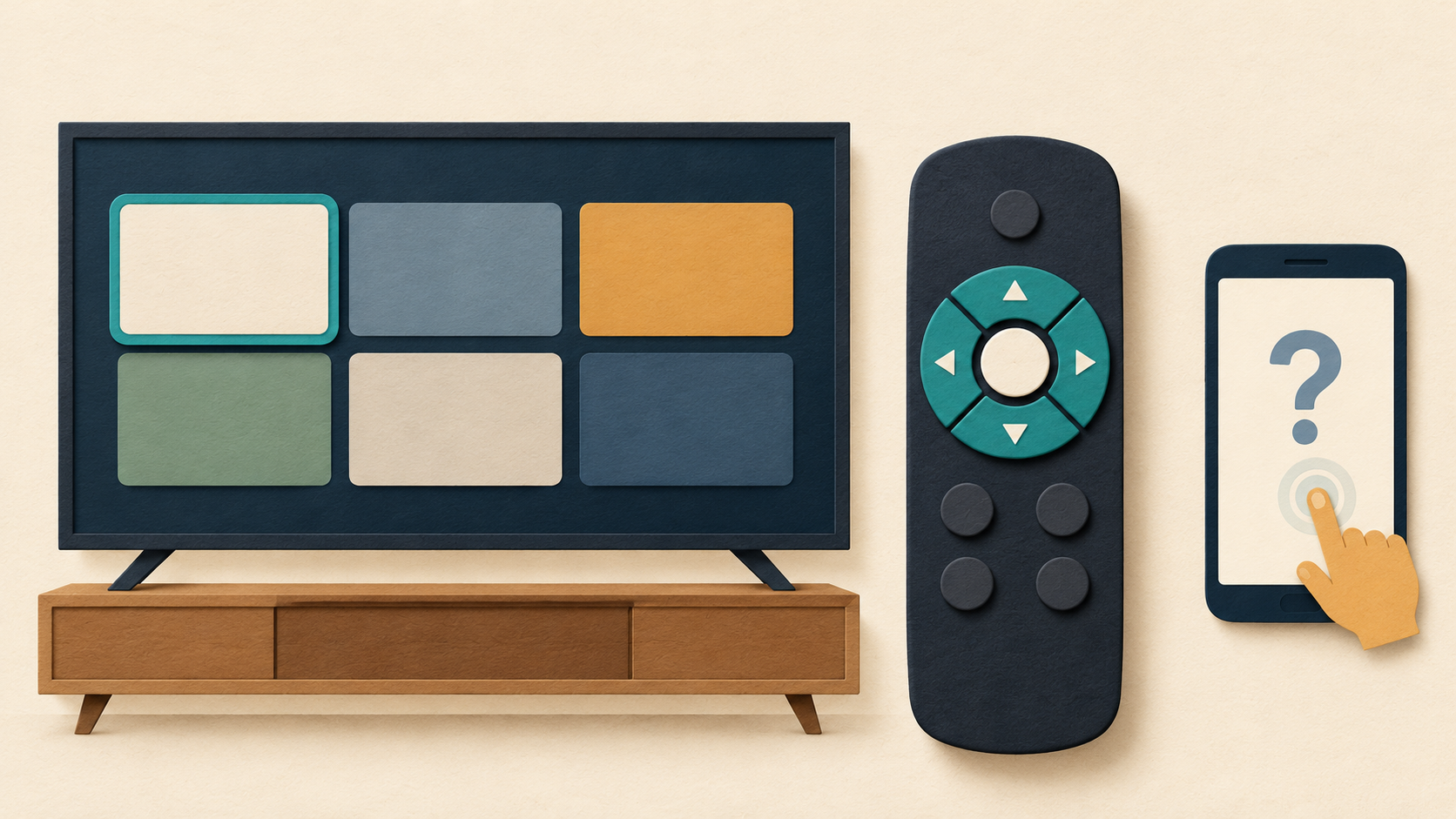
If the remote works on the TV Home screen but not inside one app, investigate that app’s TV support and navigation first. If it fails across Home, Settings and several apps, investigate the remote or TV connection instead. An APK can install and open without providing usable remote navigation.
Sources reviewed 20 October 2026. Documentation-based diagnostic guide; no television or APK test is claimed.
Run a short comparison before changing anything
- Press Home and try moving between items with the directional pad.
- Open Settings, then a different app known to work with your remote.
- Return to the affected app. Note whether a highlighted item moves, whether the center Select button works and whether Back exits the screen.
- Record the app name, release, TV model, system version and the first screen where navigation stops.
Perform these checks on your own device. They help describe the failure; they do not conclusively identify a broken component. Our Android TV installation and compatibility guide covers the earlier question of choosing a supported TV app.
Match the symptom to the next check
| Observed symptom | What to investigate next |
|---|---|
| Home and other apps respond; one app does not | The app’s TV edition, focus navigation and the particular screen. |
| Directional buttons work but a visible control cannot be selected | A focus or selection problem inside that screen; report the exact route to the publisher. |
| Home, Settings and several apps do not respond | Remote batteries, connection and model-specific remote support. |
| Physical remote works; phone remote cannot connect | The virtual remote’s pairing and network connection. |
| Navigation works; only volume or power fails | The device’s separate button-control setup rather than app focus. |
Why a phone APK can open but remain unusable
Android’s TV navigation documentation describes focus moving between controls with directional buttons, with Select acting on the focused item. It asks developers to check that visible controls can be reached and lists can both scroll and select items. A touchscreen layout may not provide that path.
Look for an official TV listing or publisher documentation naming your platform. Do not infer TV support from a familiar icon, an Android package name or successful installation. A touchscreen-only sign-in screen, unreachable consent button or missing focus indicator can prevent practical use even though the app starts. These are possible explanations, not a diagnosis of every unresponsive app.
When a supported TV release exists, obtain it through the publisher’s supported route. Repeatedly trying unrelated old phone APKs changes the evidence and may introduce other problems. Package architecture and minimum-system compatibility also do not establish remote-control support.
If the problem affects the whole TV
For Google TV, Google’s device troubleshooting guidance includes checking the remote batteries and an available remote update. It also provides supported system-update and restart steps. Other Android TV manufacturers can use different menus, so follow the instructions for the actual device and remote model.
A factory reset erases device data and is not a useful first experiment for a problem isolated to one app. Likewise, clearing an app’s data can remove its saved state and require another login. Keep these actions separate from the initial comparison and preserve access information before considering them.
If you use your phone as the remote
Google’s virtual remote troubleshooting page says the phone and TV must use the same Wi-Fi network. Confirm that connection and follow the supported setup again if necessary. A virtual remote that cannot connect is a different problem from a connected remote whose buttons fail only in one app.
If both a physical remote and a connected phone remote navigate Home normally but stop at the same app screen, include that comparison in the report. It narrows the circumstances without proving whether the cause is the app, its current screen or another system interaction.
Does a mouse solve the compatibility problem?
If the device supports one, a mouse may help demonstrate that a control responds to a pointer but not to directional focus. That observation does not turn a phone app into a supported TV edition, restore streaming rights or guarantee that later screens will work. Ask the publisher about the intended control method before relying on a workaround.
What should I send the app developer?
Provide the device and app details, installation source, the exact screen, and a short sequence such as “Home works → open app → move right twice → Select has no effect.” Say whether another app and another supported remote method work. Share a screenshot or recording only after removing account names and other private information. Ask whether that release supports your TV and whether the screen has a known D-pad issue.
If the package fails before it opens, use installation troubleshooting. For a device with a different platform, see our Samsung Tizen explanation or Fire TV platform checks. More help is available in the Android guide directory.