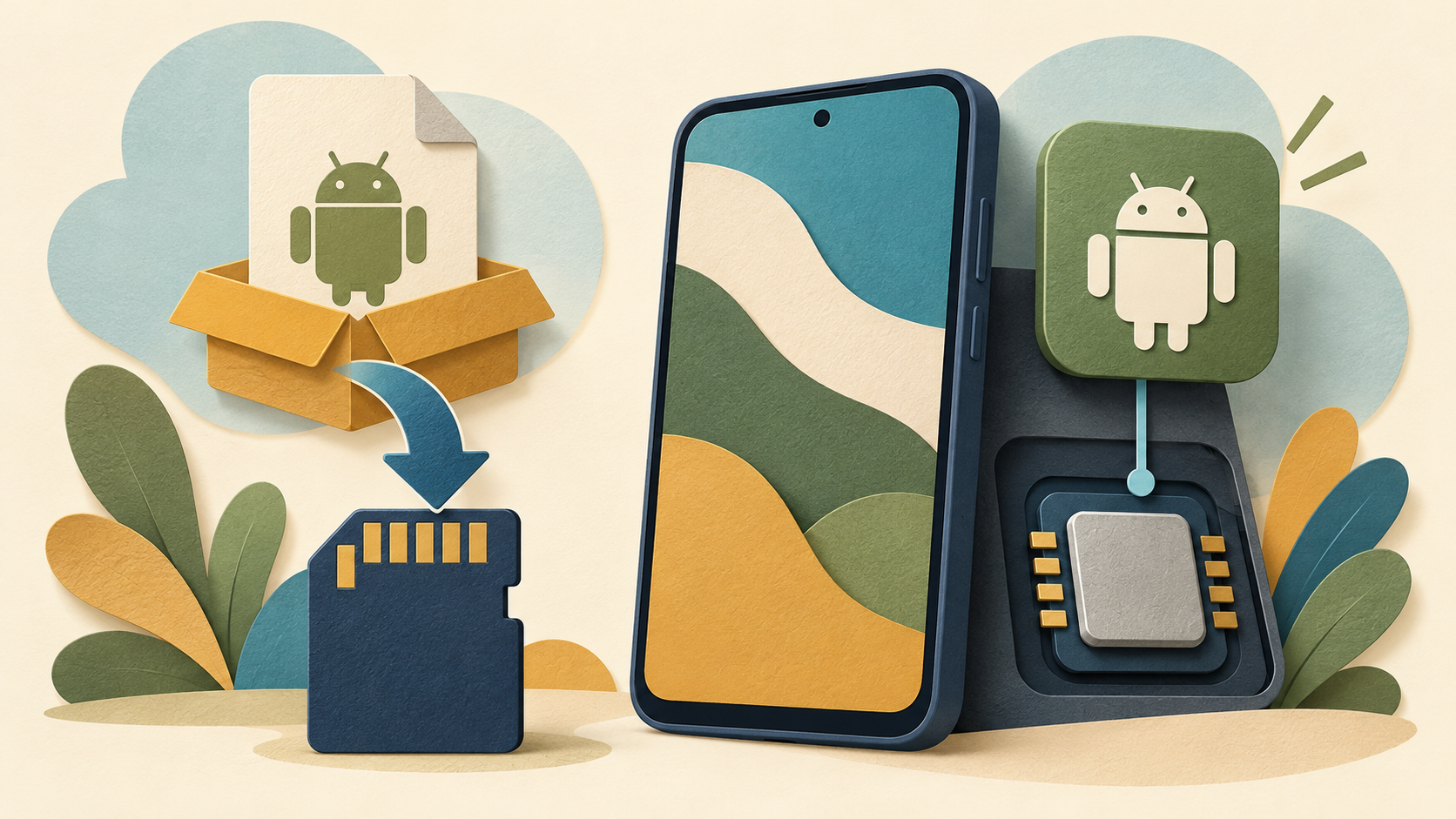
Saving an APK file on an SD card does not, by itself, choose where Android installs the app. The saved installer file, the installed application and its data are different storage questions. Check the phone’s supported storage options and the actual installation message before moving files or changing a card’s format.
Official documentation reviewed 20 October 2026. No card formatting, APK installation or storage migration was tested. Device makers and Android builds can expose different options; this guide does not promise a universal move-to-SD control.
Separate the file from the installation
A downloaded APK is the package you selected as the installer input. Its folder can help you locate that file, but a folder choice is not an instruction that Android must place the running app there. Similarly, moving a saved APK does not establish that the installed app’s private data has moved with it.
When investigating space, write down which item the error concerns: saving the download, opening the file, installing the app or storing new in-app content. Do not interpret free capacity on one storage volume as proof that every operation has enough room.
Portable and internal SD-card modes differ
Google’s SD-card setup guidance distinguishes a portable card used for files from a card configured as internal storage. It describes app installation for internal-card mode, while portable mode is for files and does not provide that app-installation use.
| Storage situation | What to understand |
|---|---|
| APK file saved on a portable card | Locates an installer file; it does not establish the installed app’s destination. |
| Card configured as internal storage, where supported | A different device-storage arrangement, not merely moving a download folder. |
| App offers its own media/download destination | A setting for that content should not be assumed to relocate the whole application. |
Confirm the options supported by your exact phone with its manufacturer. Do not follow a tutorial for another model simply because both devices have a microSD slot. A storage feature being documented by Android does not prove that every manufacturer exposes it in the same way.
The app and system also influence install location
Android’s app install-location documentation describes an application’s manifest preference and system decisions. A request for external installation is not a universal guarantee that the system chooses it. This is a developer-facing explanation, not a suggestion to edit and re-sign someone else’s APK.
That documentation also describes limitations of external installation, including internal storage still being used for private data in the model it explains, and app availability when external storage is unmounted. Do not assume that moving an eligible app eliminates all internal-space needs or makes the installed app portable to another phone.
Use the publisher’s supported instructions for the exact app and release. A generic “force every app to SD” claim does not establish that its background tasks, account behavior or local data will continue working.
If the error says there is not enough space
- Record the exact error and the stage at which it appears.
- Inspect storage information for the relevant volumes rather than only the card’s advertised capacity.
- Preserve important local files and app data before removing content.
- Use supported device and app cleanup options, then retry only when the source and package are understood.
Google’s storage guidance distinguishes clear cache from clear storage: the latter deletes app data. Do not press it as a routine space fix while projects, messages or recovery options are uncertain. The archive versus uninstall guide covers another supported storage-management distinction.
Formatting is a data-loss decision
Google warns that formatting an SD card permanently deletes its data. Keep verified copies of important files and understand the manufacturer’s supported restore or migration path before considering it. This guide intentionally does not present formatting as the next button to press for an unrelated installation error.
If a card is already used as part of device storage, consult the device instructions before removing or repurposing it. Record the current mode and what depends on that card rather than treating every card as a freely interchangeable file holder.
Frequently asked questions
Can I install from a file located on the card?
The file location and the app’s final destination are separate. First verify that the phone can access the complete intended package and that its source is legitimate.
Why is internal storage still relevant?
Do not assume that every app component and data item moves externally. Check the actual system and app behavior documented for your device.
Does a larger card fix every “app not installed” error?
No. Signing, compatibility and package completeness can cause different failures. Use the installation checklist and the minimum Android requirement guide for those questions.
What if the download never finishes?
Start with the file-transfer guide. Installation-location settings do not repair a broken server link.
Browse the Android guide directory for related help.