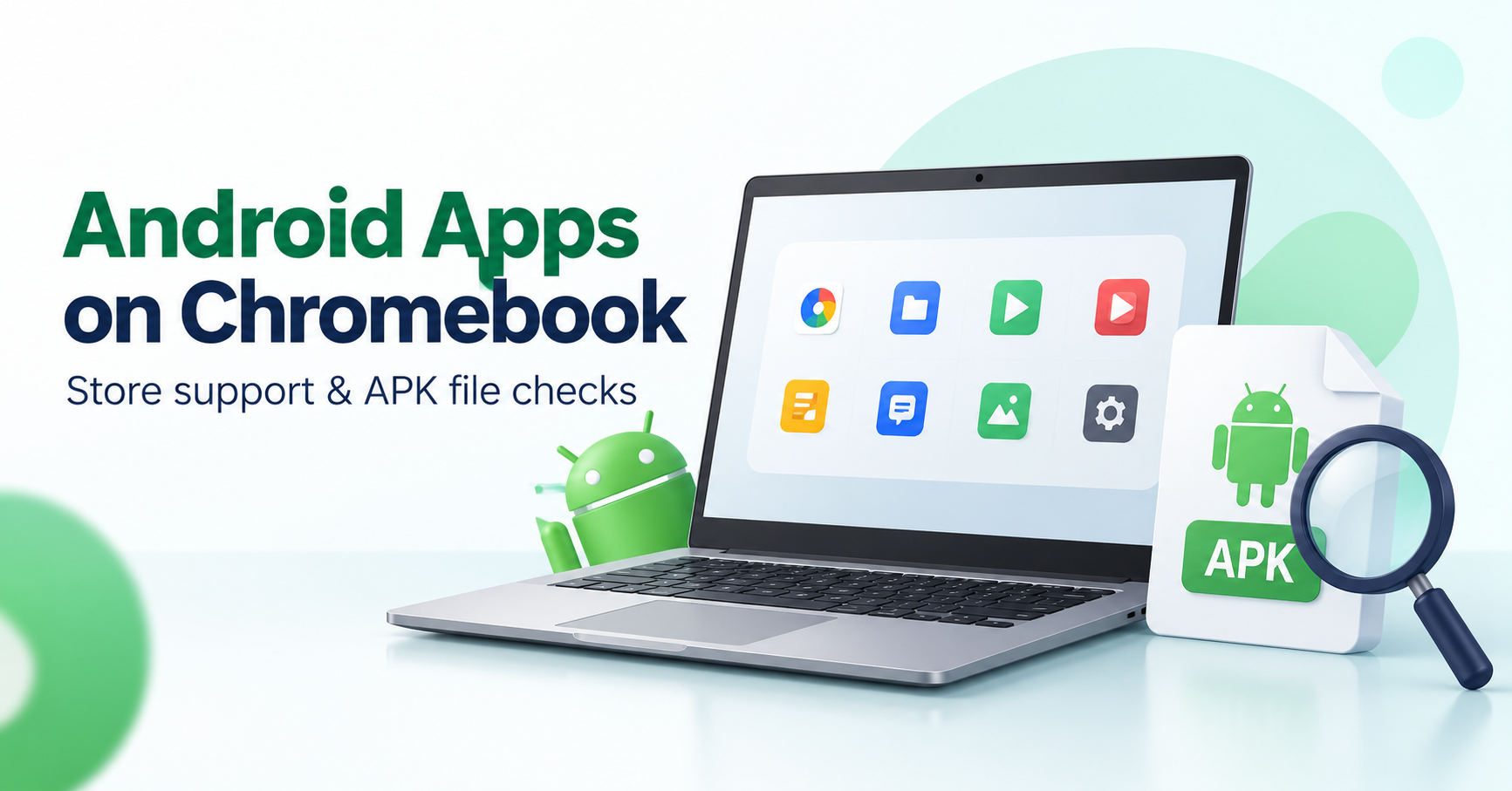
Start with Google Play on a supported Chromebook when the Android app you need is available there. Downloading an APK through Chrome only saves a file; it does not prove that your Chromebook supports Android installation or that the package will run. Developer Mode is not a prerequisite for ordinary Play Store app installation.
Check whether your Chromebook supports Android apps
Google’s Chromebook Android-app guidance explains that supported models can install apps from Google Play. Not every model or app is supported. Update ChromeOS and check the device’s settings for Google Play availability. If the expected option is missing, identify the model and account context rather than following instructions for a different machine.
School and work accounts
A managed Chromebook may restrict the Play Store or particular apps. Ask the administrator about the supported configuration. Instructions that require changing security or management settings should not be treated as routine download steps. A browser download working does not mean the administrator permits installation.
Install a supported Play Store app
Use the Play Store on the Chromebook, inspect the developer and app listing, then follow its installation steps. App availability, display behaviour and permissions can differ from a phone. Check the current listing rather than assuming that every Android app has full keyboard, touchpad or window support.
What about APK files from a website?
Check the app’s publisher and whether a supported Chromebook installation path exists for your purpose. An arbitrary “enable unknown sources” tutorial may omit model, account or environment requirements. Developer workflows are separate from ordinary store installation. Do not switch Developer Mode on merely to download a file; understand the manufacturer’s security and data consequences before any such change.
Troubleshoot the stage that is failing
If a file will not save, inspect the browser message, link access and storage. If an app is unavailable in Play, check device support and administrator restrictions. If an installed app crashes, use the developer’s help and ordinary update troubleshooting. Do not repeatedly sideload different versions as a substitute for identifying the actual error. See our APK problem diagnosis guide.
Source and update decisions
A package name or copied logo is not evidence of an authentic publisher release. Keep security protection enabled and review requested permissions. Our download-source guide explains file and distributor checks. This page is based on documented support; we have not tested your individual Chromebook or certified an unofficial package.