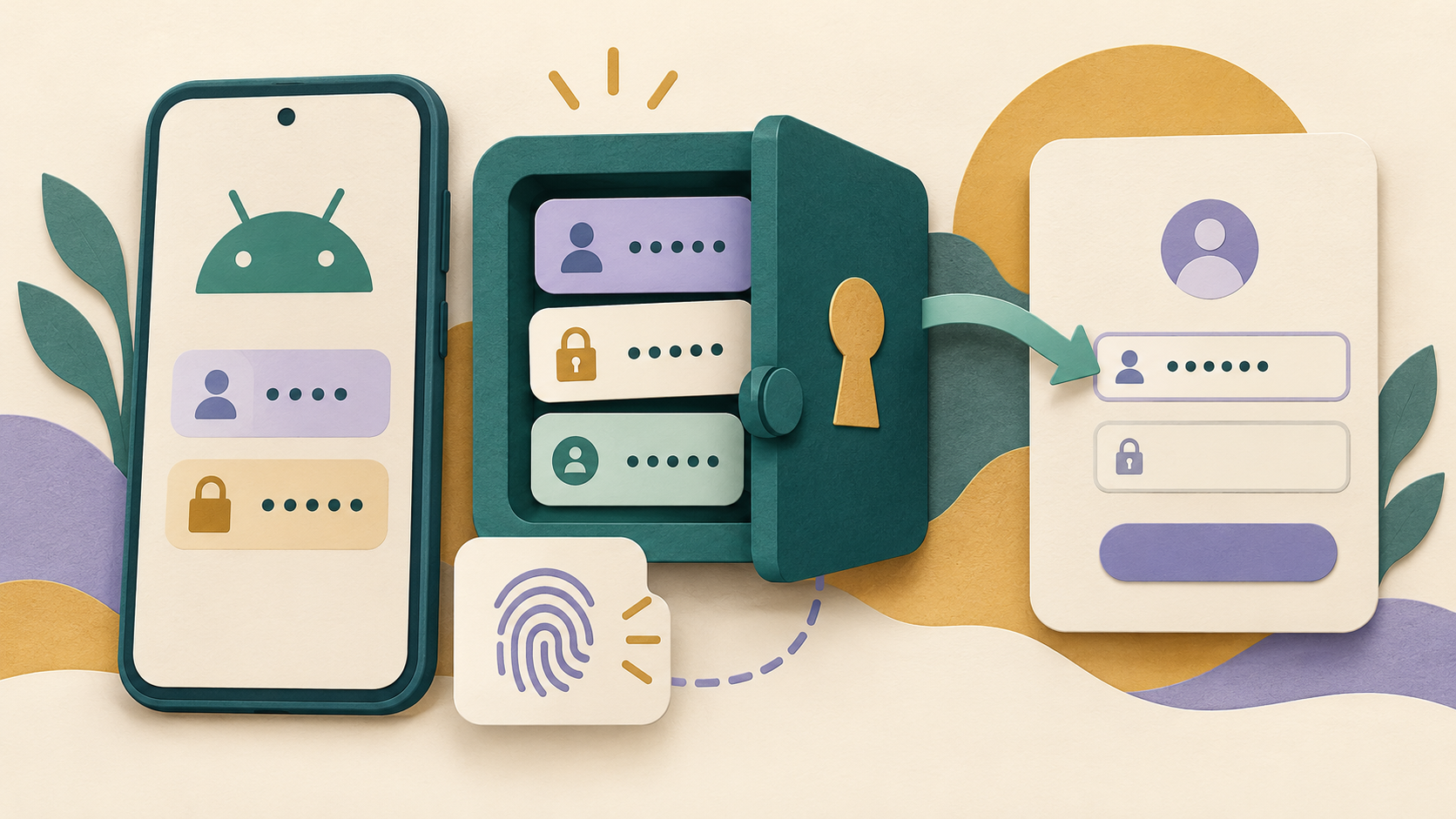
Proton Pass uses Android’s autofill setting to offer saved logins in other apps and websites. Optional fingerprint unlock is a separate choice for opening your password manager. Neither setting should be confused with a blanket instruction to approve every permission request. Match the setting to the feature you actually want.
Official documentation reviewed 20 October 2026. No Android permission manifest or device-specific permission list was independently tested for this guide. Menu labels can vary by device and app release.
Identify the control you are changing
| Control | Purpose | Where to start |
|---|---|---|
| Default autofill service | Suggest and fill stored logins | Proton Pass Profile > Autofill, then Android’s service selection |
| Fingerprint unlock | Convenient access on a supported device | Proton Pass Profile > Fingerprint |
| Ordinary Android app permissions | Control a particular device resource when requested | Android Settings > Apps > Proton Pass > Permissions |
| Desktop autotype access | A different desktop feature | The platform-specific Proton documentation, not an Android setup shortcut |
Enable Android autofill deliberately
- Open the genuine Proton Pass app and sign in to the intended account.
- In the app, open Profile > Autofill, or use the autofill setup prompt.
- Review Android’s autofill-service selection and choose Proton Pass if that is your intended provider.
- Read the system confirmation before approving. Return to a legitimate login page and choose the correct saved item.
Proton’s Android setup guide describes this process. It also explains that you can leave autofill disabled and copy credentials manually instead. On a supported device, optional fingerprint unlock can be enabled through Profile > Fingerprint. Keep a working account sign-in and recovery route; a convenience setting is not a substitute for knowing how you regain account access.
If the expected login is not offered
Check the destination first: confirm the website address or app identity before inserting a password. Then open Proton Pass and verify that the intended login exists in the account you are using. A missing item and an unavailable autofill suggestion are different symptoms.
Proton’s Android usage guide explains selecting a suggested login or opening Proton Pass from the autofill choices. It also documents manual copy and paste, with a clipboard-clearing setting in Profile > Settings > Clipboard. Avoid copying a password into notes or a message while investigating the problem.
If only one app or site is affected, record that name and which field fails. If every destination is affected, revisit the selected autofill service. These observations give support useful information without requiring you to reveal a credential. Do not delete saved logins or reset the vault simply because a suggestion is absent.
Review ordinary permissions separately
Google’s Android permission instructions explain how to inspect Settings > Apps > the app > Permissions and allow or deny a listed resource. That screen is useful for a particular permission request, but it is not a universal list of every feature-specific Android setting.
Read the actual request on your device and identify what action triggered it. This article does not claim that Proton Pass always requests contacts, camera, location or other resources. A permission list for Proton Mail, another password manager, a browser extension or an older release should not be presented as the list for your installed Android app.
Do not apply desktop autotype instructions to Android
Proton’s autotype help discusses a desktop feature and platform-specific access on macOS and Linux. That is different from selecting an Android autofill service. A search result mentioning accessibility permission is not, by itself, a reason to change Android accessibility settings.
If your Android installation asks for access that you cannot relate to a documented feature, pause and verify the app’s origin and the relevant current Android instructions with Proton support. Do not enable broad access just to make a warning disappear.
A saved login exists but is not suggested
Distinguish a missing vault item from a missing suggestion at the destination. Open Proton Pass first and confirm the intended account and login item. Do not delete or recreate the item merely because a field does not offer it.
- Verify the destination app or website independently before filling any credential.
- Focus the username or password field and inspect the offered choices. Proton’s Android usage instructions describe opening Proton Pass from autofill, selecting the correct login and choosing Use once or Use always.
- If the login is available inside Pass but absent in one app, note that contrast. Check the saved website information and intended association rather than broadening access to unrelated destinations.
- If the item is missing from this Pass installation but present in another authorized one, check the selected account and any active filters before assuming data loss.
- For a confirmed sync discrepancy, Proton’s troubleshooting guide documents Profile → Settings → Force synchronization on Android. Compare again after it completes; do not describe this as guaranteed recovery of a deleted item.
What should stay out of a support report?
Passwords, recovery details and vault exports. Give the app, Android and Pass versions, chosen autofill method, and whether the item is present inside Pass. A non-sensitive description such as “item exists; no suggestion in this app” is useful without exposing the credential.
Saved-login section reviewed 23 October 2026. No credentials or autofill tests were used for this guide.
Know what successful setup does and does not establish
Choosing Proton Pass as the default provider enables an autofill route; it does not prove that every field in every app will offer the right saved item. Treat setup, suggestion matching and successful sign-in as separate observations.
Proton’s Android setup instructions allow enabling autofill later through Profile → Autofill. Its usage guide documents selecting a suggested login or opening Proton Pass to choose one. That guide was written with a Samsung One UI device and explicitly notes that details may vary with Android.
- Confirm the intended provider before troubleshooting one destination.
- Check whether the relevant item is actually a saved login for this service, rather than a standalone note or another kind of vault item.
- Compare the address or app identity and username privately before choosing an item. A plausible suggestion is not independent proof that the destination is legitimate.
- If autofill is unavailable, Proton documents manual copy/paste. Use only the intended field, avoid pasting into a message or search box, and review the app’s Clipboard setting.
- Record whether the failure is no suggestion, a wrong suggestion or a filled credential rejected by the service. Those outcomes need different investigations.
Do not describe autofill as account recovery, an entitlement to a paid feature or a guarantee that credentials are current. A saved item may need correction through the service’s supported account process; broadening Android permissions does not establish that correction.
Autofill scope section reviewed 23 October 2026. No real credentials, account changes or device tests were used.
Frequently asked questions
Do I have to use autofill to read my saved logins?
Proton documents manual copy and paste as an alternative. Be careful about the destination and clipboard exposure when handling credentials.
Does granting ordinary app permissions select the autofill provider?
Use the app’s Autofill setup and Android’s corresponding provider selection. A general permission screen answers a different question.
Should I uninstall when fingerprint unlock is unavailable?
First check device support and the setting described by Proton. Preserve your account access and recovery options before considering changes that could remove local state.
What should I send to support?
Give the Android version, installed app version, relevant setting label and whether the problem affects one destination or all destinations. Redact usernames, passwords, recovery codes and vault contents from screenshots.
Our Android permissions guide explains general access choices. For a comparison of another app’s documented setup, read Bitwarden autofill access; its instructions should not be assumed identical to Proton Pass. Find related help in the Android guide directory.