Sources reviewed 18 October 2026. Documentation-based guide; no physical-device test is claimed.
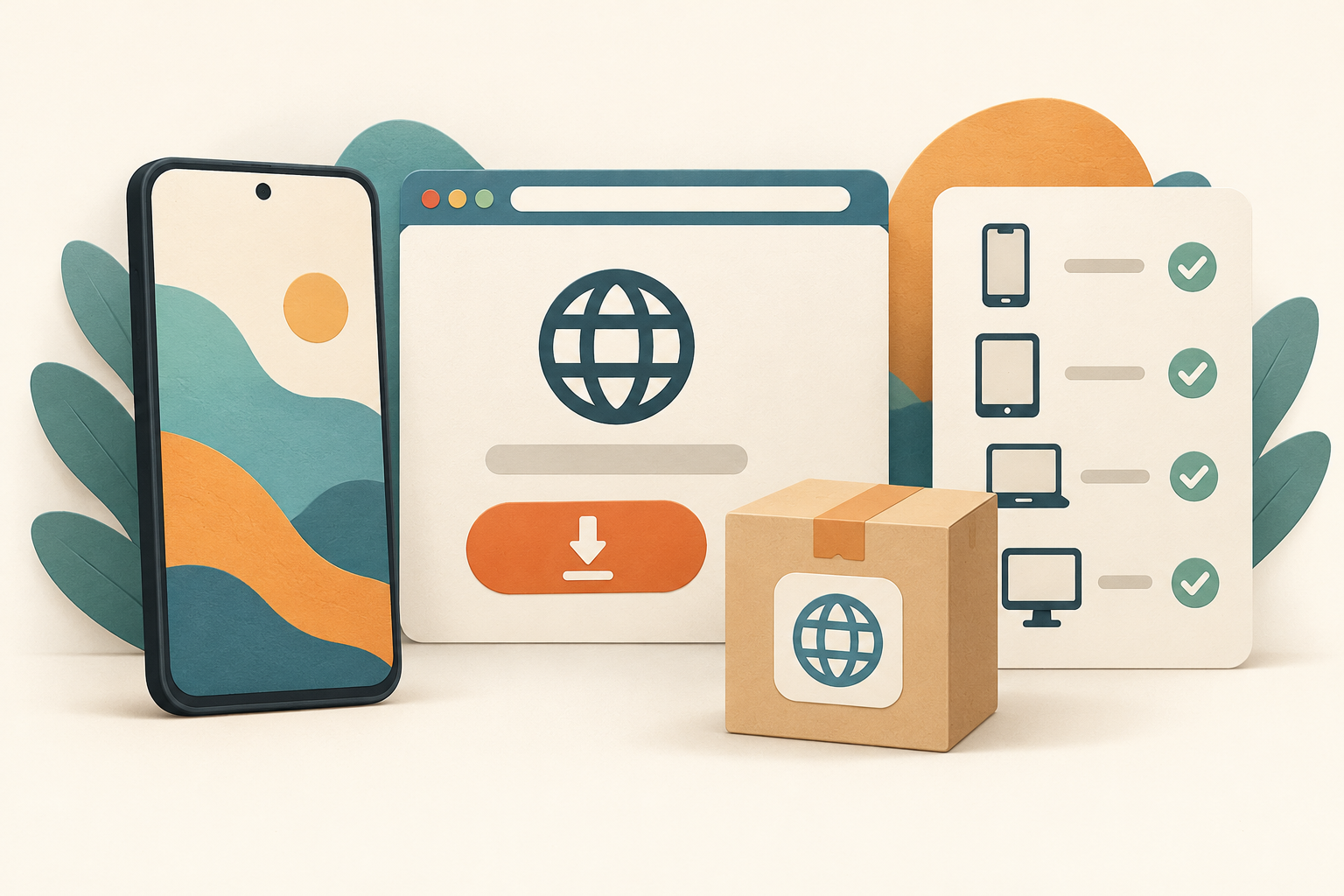
Start with Brave’s own Android installation instructions, then use one of the publisher-linked distribution routes and check the selected release against your device. A browser name, familiar icon or “latest APK” label on another website is not enough to establish the source.
Sources reviewed 18 October 2026. This is a documentation-based installation guide; no device benchmark or APK installation test is claimed.
The official starting points
Brave’s installation guide links Android users to Google Play, its GitHub repository for APKs and its F-Droid repository. Follow those links from the publisher’s guidance rather than assuming that every similarly named listing is the same distribution.
The Android link on Brave’s website leads to the Google Play listing for package com.brave.browser, published by Brave Software. Check the destination and selected product before installing. This guide contains no commission tracking link.
| Route | What to confirm |
|---|---|
| Publisher-linked Play listing | The intended app, publisher and eligibility shown for your device. |
| APK from the linked GitHub repository | The release channel, release asset and device architecture. |
| Brave’s linked F-Droid repository | The publisher’s repository instructions and the intended package. |
Check compatibility without copying an old version number
At review, the Google Play description says Android 7 and above, while the system requirements help page lists Android 8 or later. Those descriptions disagree. This guide therefore does not promise that every current Brave release works on either minimum.
Check the eligibility shown for the actual device and the requirements of the specific release you intend to obtain. If the publisher’s documentation and the store disagree for your phone, ask Brave support about that release before falling back to a random older APK. Record the Android version and exact error in the request.
Release, Beta and Nightly are different choices
Brave’s download page distinguishes Release from Beta and Nightly and explains its progression of features between channels. Choose deliberately rather than treating a different channel as a routine fix for a failed stable installation. Do not assume that changing channels transfers every setting or solves an update conflict.
Before using a direct APK
- Reach the repository through Brave’s own installation instructions.
- Check which Android release channel and asset you selected.
- Match the build to the Android system’s supported architecture. Our ARM64 and ARM guide explains that check.
- If a trusted checksum is provided, compare the exact file rather than a certificate fingerprint. See APK SHA-256 verification and its limitations.
- When updating, preserve the existing installation while investigating a signing error. Use the signature mismatch guide before a data-removing action.
What if Play says the app is unavailable?
Record the exact store message and check the device and account context. Do not infer the cause merely from a missing search result. Another download route is not evidence that the same release is supported on the device, and an archived package does not establish current maintenance.
Does downloading Brave make other APKs trustworthy?
No browser choice independently verifies every file you later download. Apply the source and permission checklist to each app. Avoid claims that a browser’s protections guarantee an APK is harmless.
Match Brave access to the website feature
A genuine installation source does not mean every website should receive every permission. Check both the Android access granted to Brave and the website-level choice inside the browser. Identify the site and the action you deliberately started before changing either.
Brave’s Android site-permission instructions use Settings → Site settings. Open the permission you need to review. The All sites entry lets you inspect sites and their granted permissions. This is the Android-specific source; desktop-only permission lists should not be treated as proof that every item appears on your phone.
- Confirm the domain in the address bar. A familiar page design is not sufficient to identify the site receiving access.
- Describe the intended feature: for example, joining a camera call, recording audio or supplying your current position. Merely opening a news page does not explain every request it might make.
- Review that site under Brave’s Site settings. Read the available options and existing choice before making a change.
- If the feature still cannot access the hardware, review Brave under Android Settings → Apps → Permissions. Device and Android versions can change the menu wording and available choices.
- Try the same intended task again, then review whether the site still needs persistent access. Keep unrelated permissions unchanged.
What if one website works and another does not?
That comparison narrows the problem; it does not prove that Brave needs all permissions. Record which domain fails, what it asks for and the message shown. Website settings, account restrictions and the feature’s own compatibility can differ.
Should I disable protections to fix a permission error?
Do not use a broad reset as a substitute for identifying the blocked feature. A permission decision and a download-source decision are different checks. Consult the site’s help and Brave’s Android documentation for the specific issue, especially on a managed work phone.
Our Android permissions and privacy checklist explains the operating-system side of access review.
Permission section reviewed 23 October 2026. Documentation-based guidance; no device permission audit is claimed.
What should I check after installation?
Open the intended browser, confirm its release/channel information in its current settings and try the specific task you need. Keep installation, website behavior and account-data transfer as separate questions. If installation itself fails, use Android installation troubleshooting; for other app guides, visit the guide directory.